VPN service provides an excellent layer of security when browsing the internet or downloading files privately. To prevent accidental IP address leaks, TorGuard suggests using a quick kill switch script that automatically disconnects any application of choice in the event of a VPN disconnect. To setup the VPN kill switch in MAC just follow the simple steps below:
This tutorial will show how to setup a VPN “Kill switch” that terminates a specified application upon VPN disconnect. This process is automatic and can prevent accidental IP leaks when you are away from the computer. This walkthrough works with the TorGuard Pro (Viscosity) OpenVPN software provided with membership.
1.) First, download the MAC KillSwitch script here.
By default, the script will terminate “Transmission”, however this can be changed to any application name like chrome or utorrent.
To select which app you wish to close, open Killswitch.scpt with the AppleScript Editor application. This can be found at /Applications/Utilities/AppleScript Editor.app. Replace “Transmission” with the desired application you wish to terminate on disconnect. Select Save. (control +s)
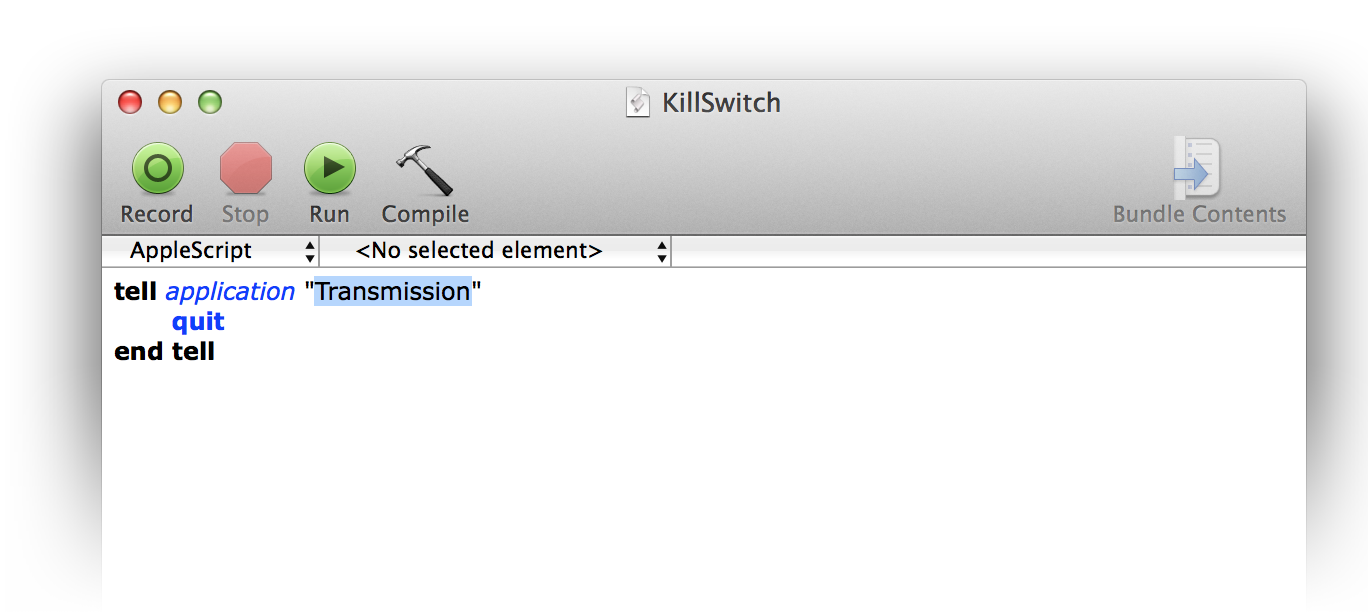
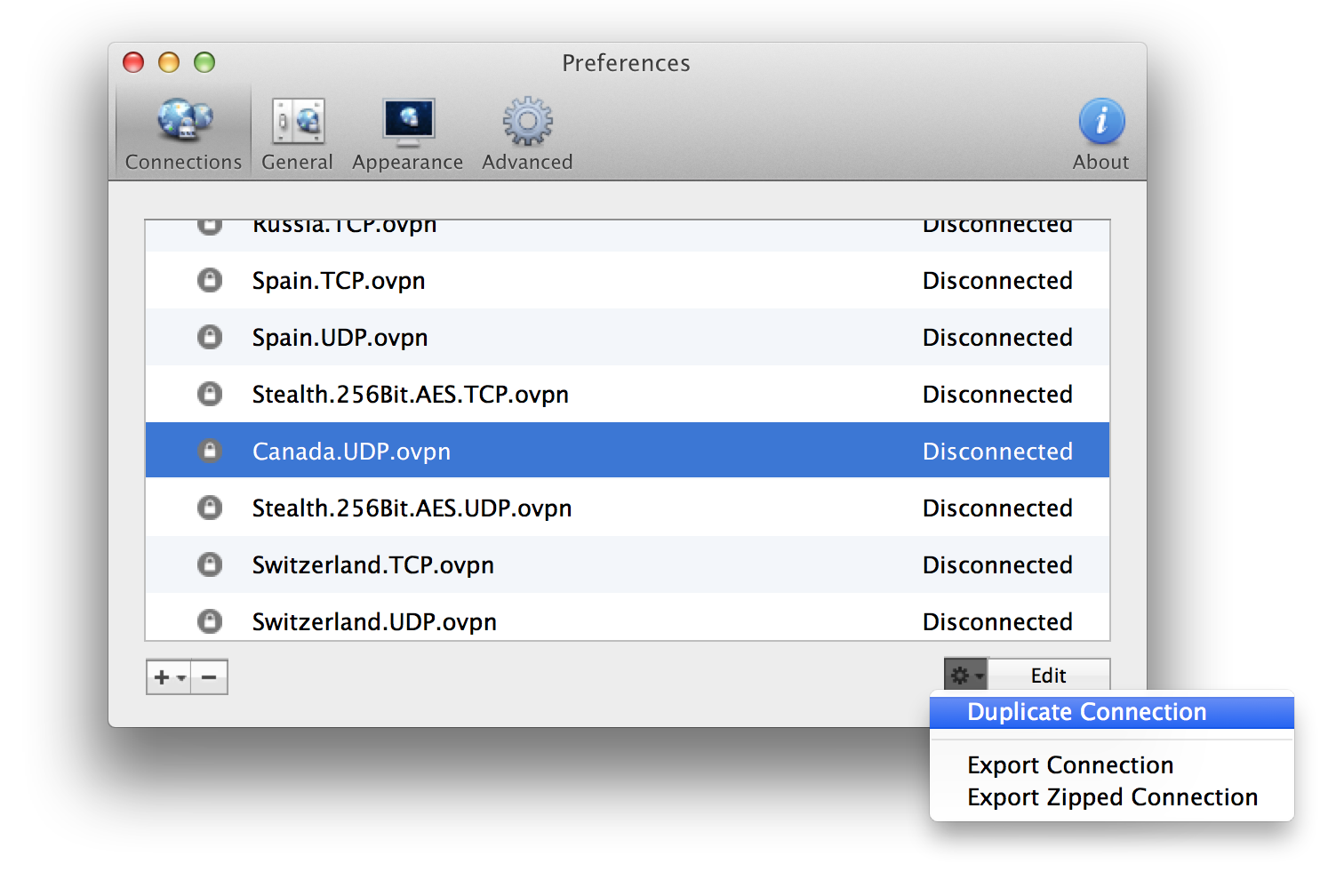
2.) In the TorGuard Pro VPN software (Viscosity) click the VPN server you wish to setup this Killswitch rule on.
Click the settings button and select Duplicate Connection.
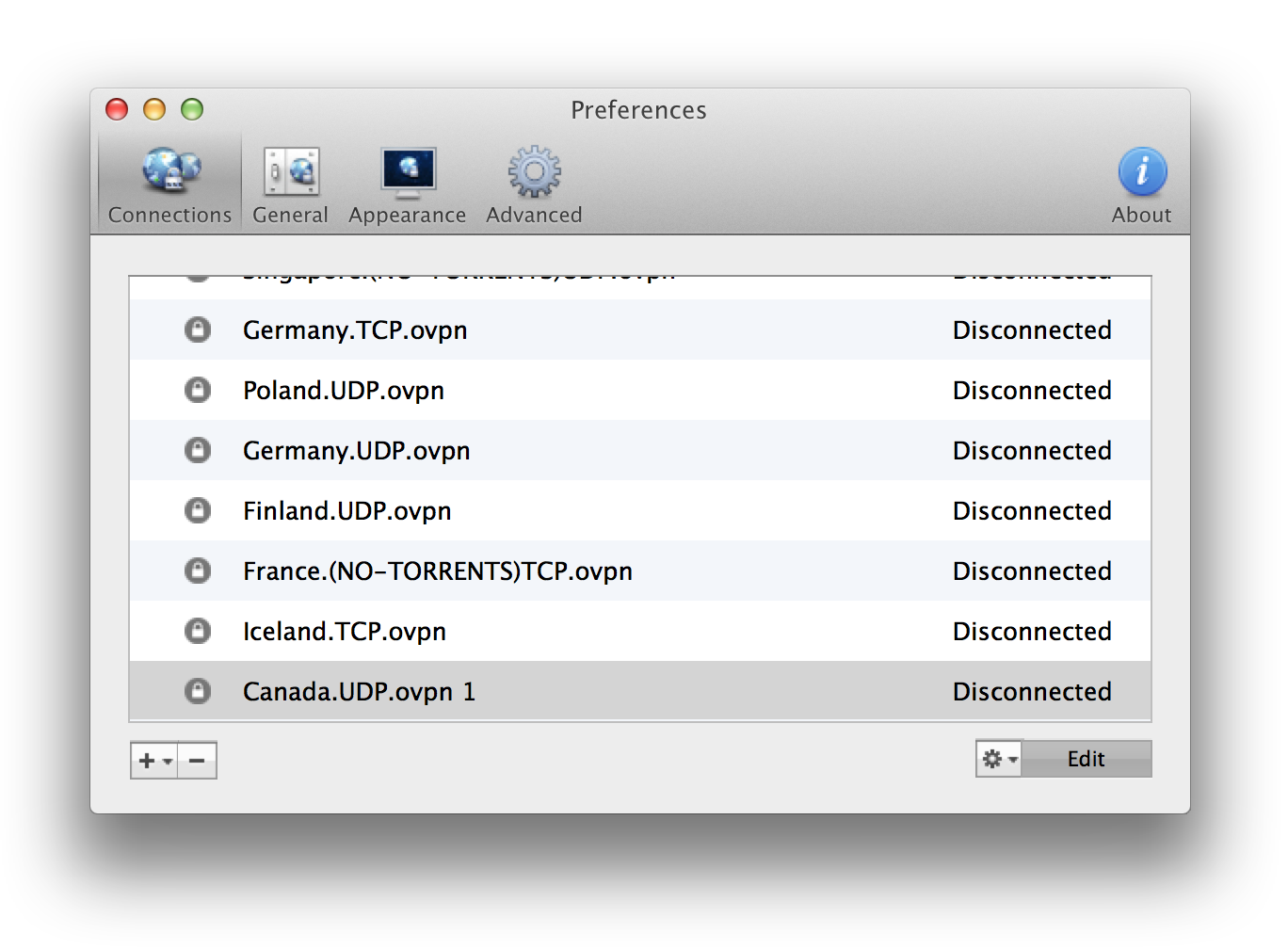
3.) On the new duplicate connection right click and select the Edit button.
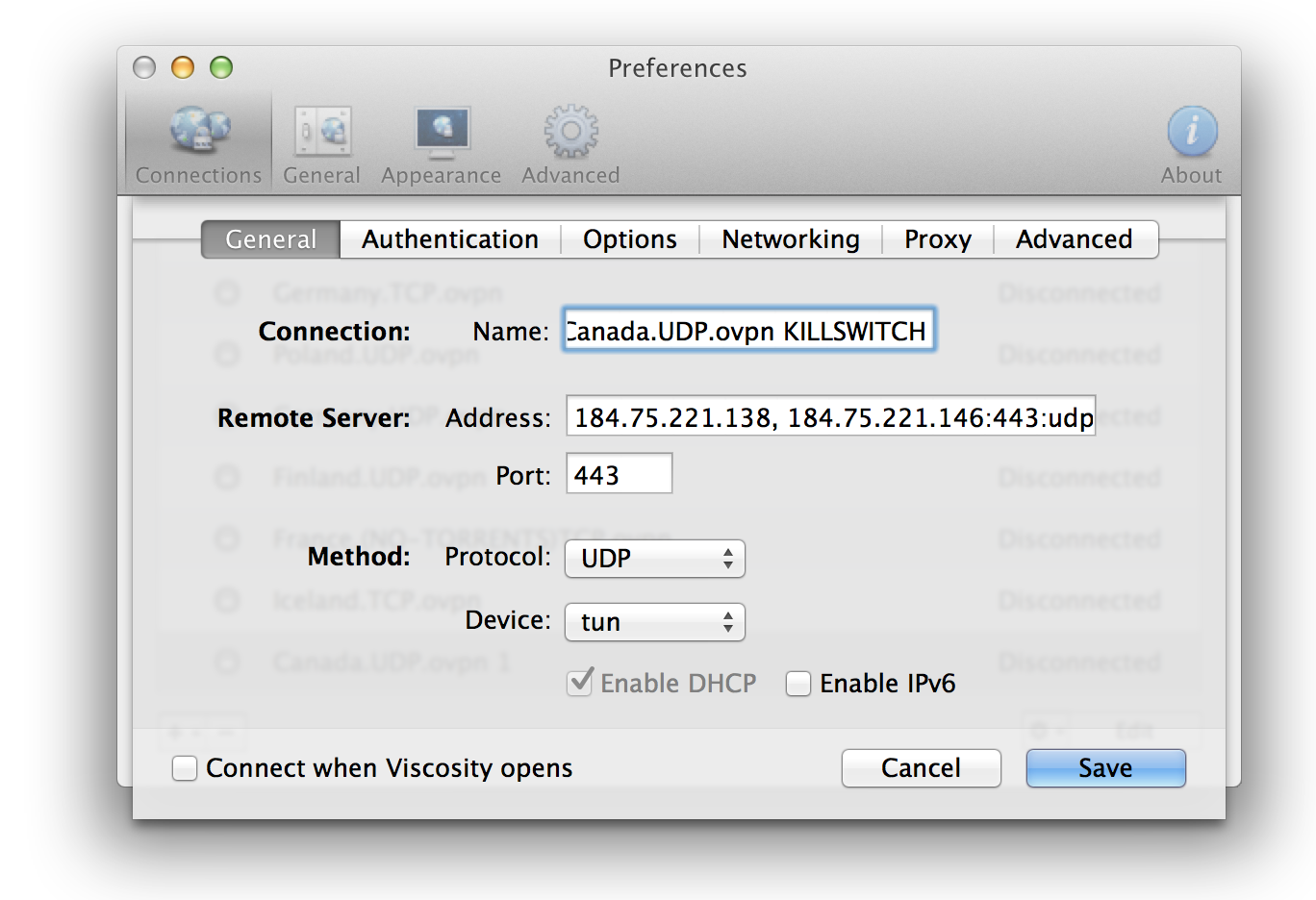
4.) Rename the connection by adding KILLSWITCH to identify it in your server line-up. This will also prevent it from being overwritten by new server updates.
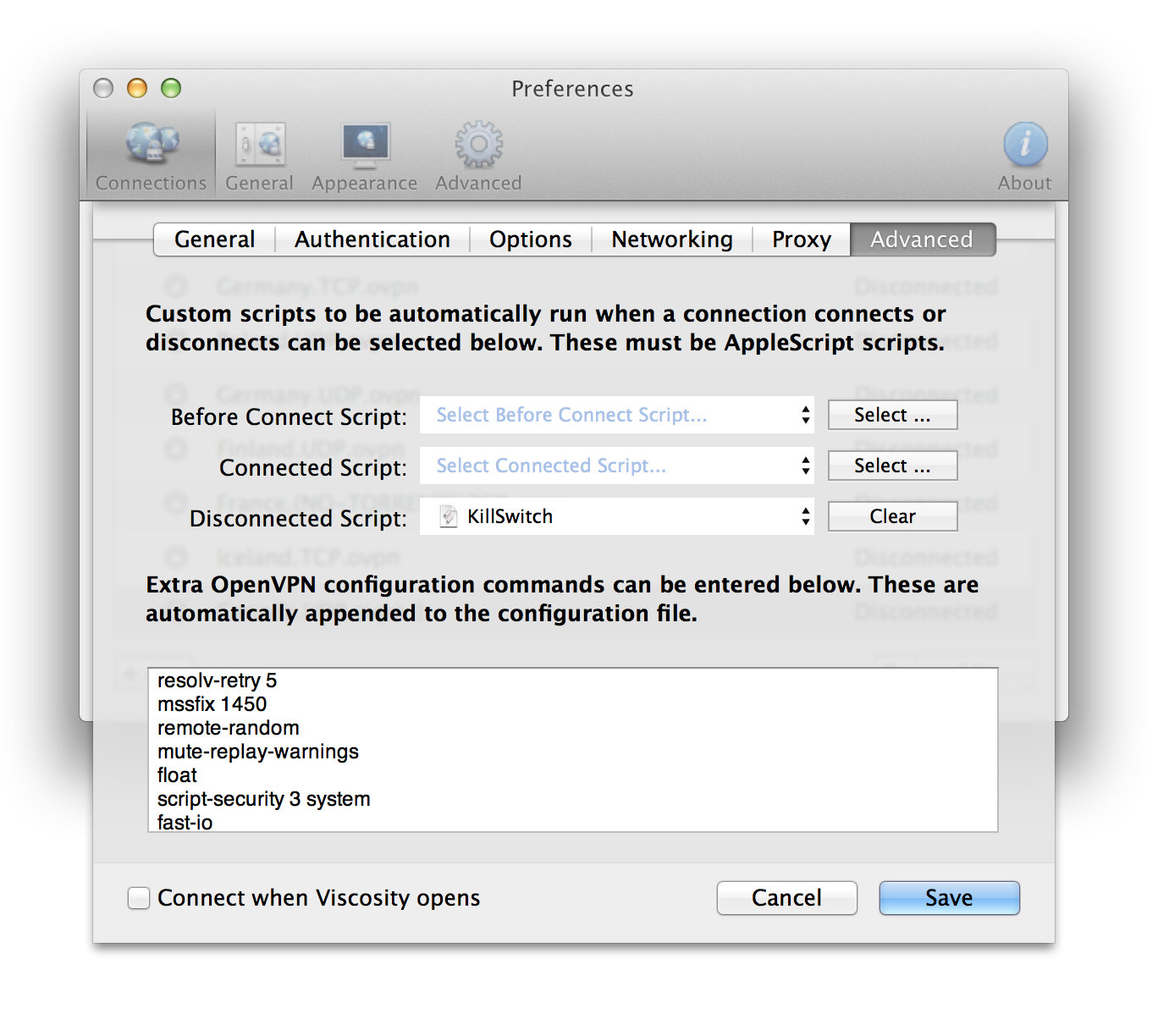
5.) Click the Advanced tab. Under Disconnect Script, click the select button and locate the killswitch.scptfile from step 1.
Click Save.
That is it! You have now setup this VPN connection to auto terminate any application of choice whenever that VPN connection disconnects.