

Running a VPN tunnel on one’s router allows the user to connect unlimited devices to the VPN server. For those using ASUS routers we suggest trying ASUSWRT Merlin firmware for excellent OpenVPN support!
This tutorial shows how to configure TorGuard VPN on any ASUS router with Merlin firmware.
Step 1.) First, you must flash the router to use ASUSWRT-Merlin firmware. This is an updated and customized version of Merlin firmware that looks just like the stock version yet features improved VPN capabilities and support. ASUSWRT Merlin supports the RT-AC56U, RT-AC66U, RT-AC68U, RT-N16 and RT-N66U (all models). To upgrade your router’s firmware first visit this page and download the correct .trx file:
http://www.mediafire.com/asuswrt-merlin/
FLASH INSTRUCTINS: Go to administration, Upgrade Firmware, then browse to the newly downloaded .trx file and select upload. Wait a few minutes for the new firmware to flash, and a few more minutes for the router to reboot.
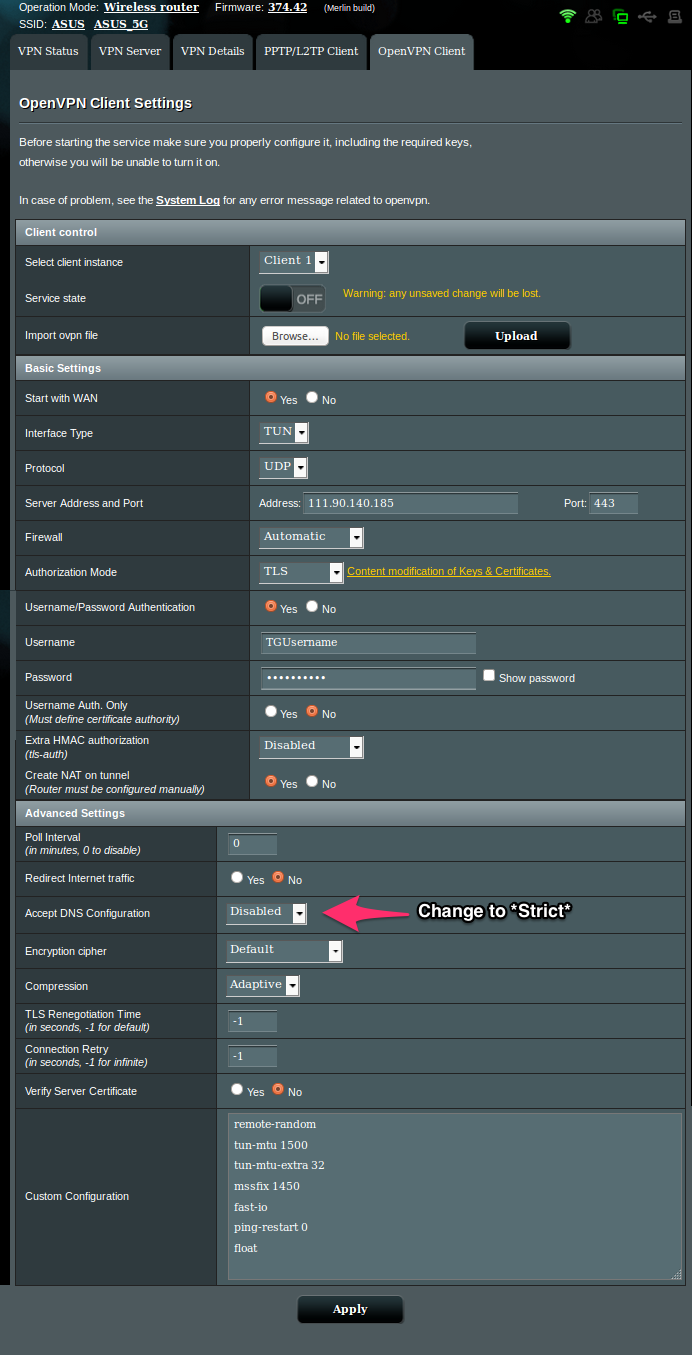
Step 2.) After the router reboots, click the VPN tab and select the OpenVPN client tab as seen below:
Step 3.)
Now we need to download the latest TorGuard OpenVPN config bundle to obtain the IP address, Port, and Certificate info. Under “Import .ovpn file” you can browse to the desired server and open to import most information.
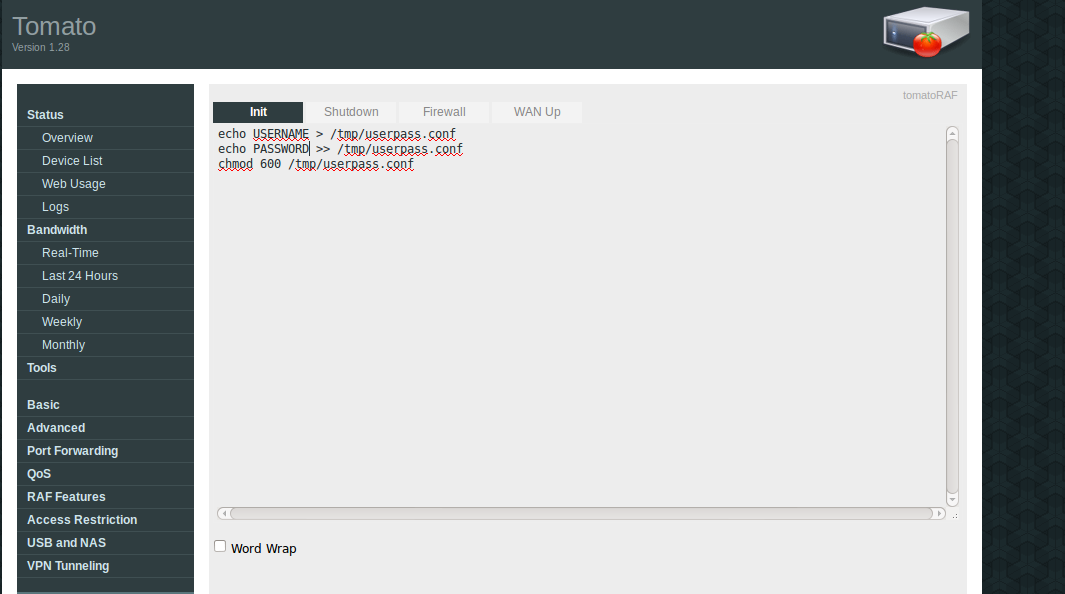
Open the .ovpn file of the server you wish to connect to and note the information highlighted below:
Verify which server IP and port you wish to connect to and paste this info under “Address” and “Port”.
Next, locate the CA .crt file and copy the file contents. Click “modify keys or certs” link and paste the entire file contents in the CA text box. click save.
All settings should now be entered just like the image shows in Step 2.
Step 4.) Turn on the VPN! Scroll back to the top of the OpenVPN client page and click the on/off switch.
Wait a moment while the VPN connection runs and you should see the image below:

You can click the VPN status tab to ensure you are connected:
