First, confirm that DD-WRT is supported on your router.Click here to search the DD-WRT website
Type the make and model of your routerand hit enter.
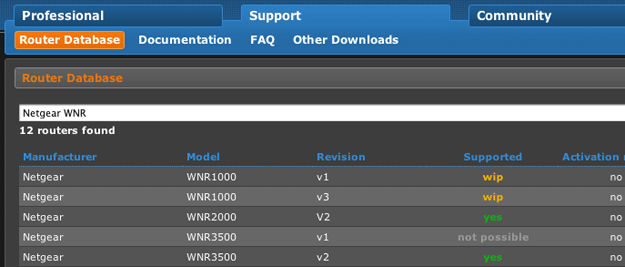
To install DD-WRT using OpenVPN on your router, follow the step-by-step instructions
provided on the DD-WRT website.
Installing DD-WRT on your router should be done with care.
Installing DD-WRT on your router can ‘brick’ your router
If not installed properly and may void your router warranty.
Once DD-WRT is installed, connect your computer to the router wirelessly or via Ethernet cable.
Type the router’s local IP address into your web browser’s URL bar and login into your router.
By default, this is typically 192.168.1.1 (if you specified a different local IP address, please use that IP address).
note: If you are running more than one router on your network, you need to change the DDWRT router
to a different address, such as 192.168.2.1 to avoid IP conflict.

After logging into the DD-WRT router web interface, please click on the ‘Services’ tab.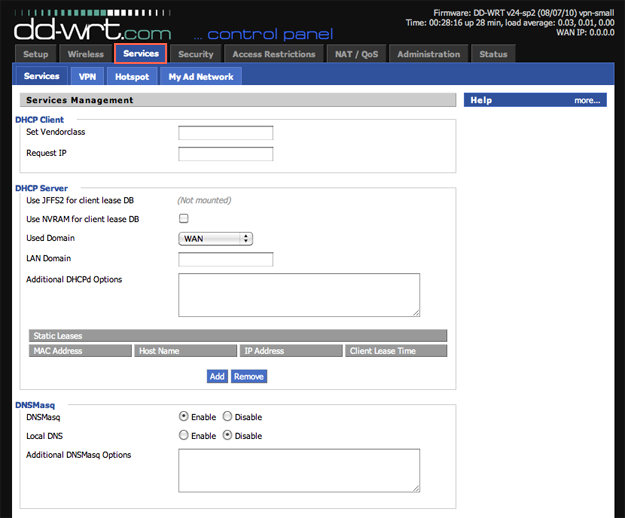
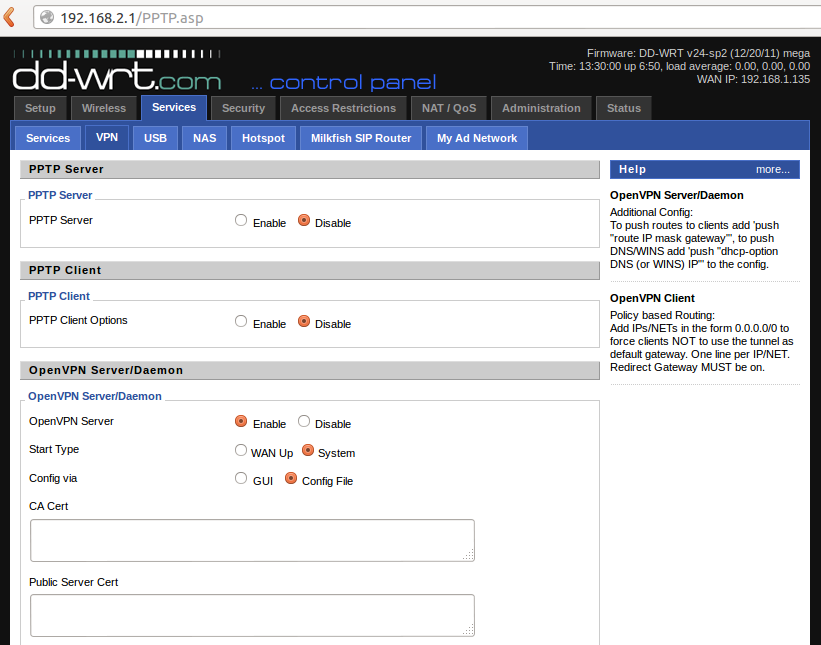
Click on the ‘VPN’ tab within the ‘Services’ tab.

Next, under OpenVPN Server/Daemon click “enable”.
This is needed to enable the OpenVPN status page. Click Apply Settings..
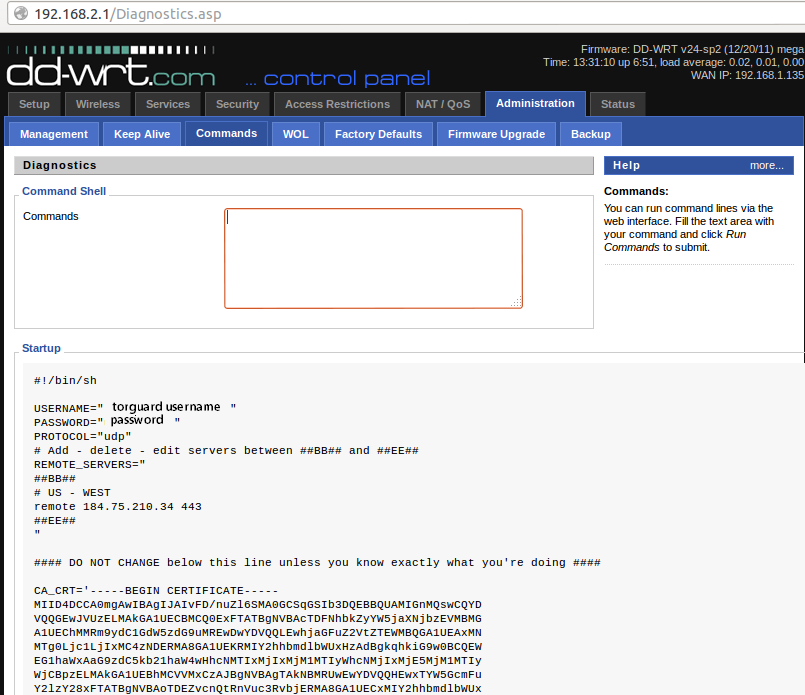
Next, access the administration area, then select commands.
Download the TorGuard DD-WRT Startup Scripts from the link below:
http://torguard.net/downloads/TorGuardDDWRT.zip
Unzip the startup scripts and select the VPN server you wish to connect to by opening the file with a text editor.
Copy the entire contents of the selected startup script and paste into the command window below.
Remember to replace “username” and “password” with your secure TorGuard VPN login.
Click “Save Startup” and then “Run Commands”..
.
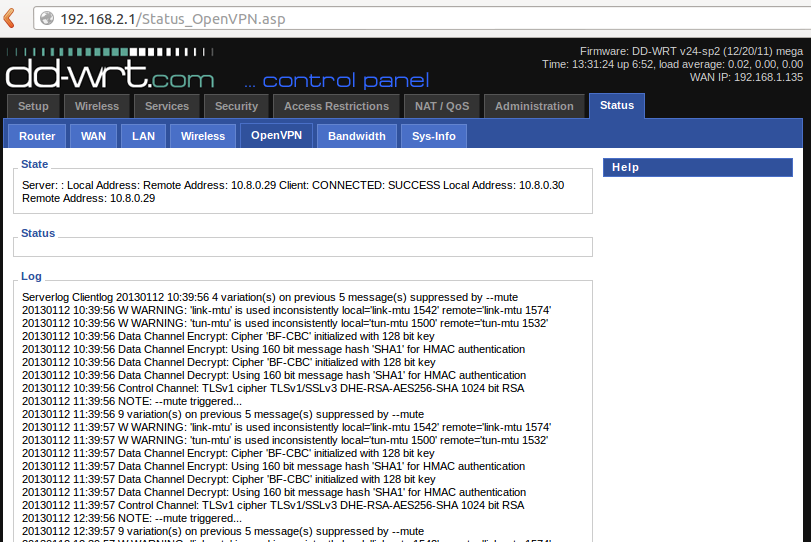
That’s it! Next we need to verify the OpenVPN connection by clicking the “status” then “OpenVPN” tab….
You can see the current status of OpenVPN under the Log area –
In our example, we can see the connection is valid by looking under “state” – CONNECTED:SUCCESS.
If you don’t see any output in the log you may need to reboot your router.
Congratulations! Now you are ready to use TorGuard using the OpenVPN protocol to encrypt your entire network and any connected devices using your DD-WRT router! Simply visit whatismyip.com to confirm that your DD-WRT router is connected to TorGuard . If you have any questions Contact our support team. We’re available 24/7/365 and will respond quickly.