This tutorial explains how you can get any gaming console (PS3 or Xbox), Smart TV or other internet capable device to use TorGuard VPN through Internet Connection Sharing (ICS).
Why would someone want to use VPN service on a gaming console like PlayStation or Xbox? Maybe you are traveling abroad and need to unblock regional restrictions on services like Netflix and Hulu. Or maybe your exceptional “Call of Duty” skills require an added layer of privacy and IP protection. Whatever the case, TorGuard Anonymous VPN is easy to share with any internet enabled device like PS3, Xbox, Smart TV, or HD player like Roku and Apple TV.
This tutorial has been made for Windows 7 but can be easily adapted for all versions of Windows OS.
Connection chain: Internet Router > through WiFi > Laptop > through Ethernet > PS3 console

First you need to verify what your computer’s IP address is. We also need to find out what IP addresses the DHCP router is using. The most common range is 192.168.1.X or 192.168.0.X
To check this please do the following:
- Click Start, type “cmd” and press enter. On command prompt, enter ipconfig and press enter.
- Note the IPv4 address of the Wireless LAN adapter as seen in the image below:

Next we need to setup the shared network connection between your computer and the device (PS3).
Since we know the DHCP IP pool (192.168.1.X or 192.168.0.X) we will randomly pick the IP: 192.168.1.115
Before we configure ICS, we must first set the computer to have a static IP address.
To do this, Open “Network and Sharing Center” and click on “Change Adapter Settings“.
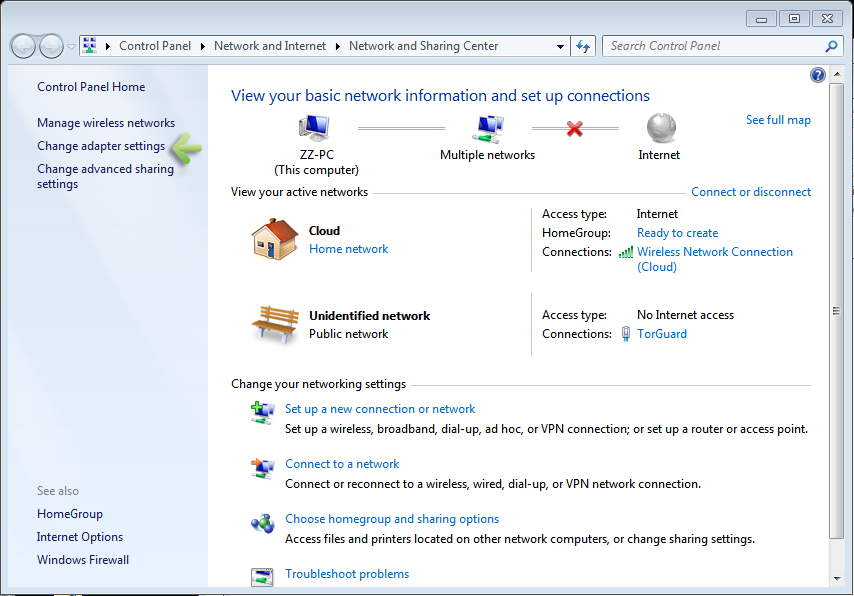
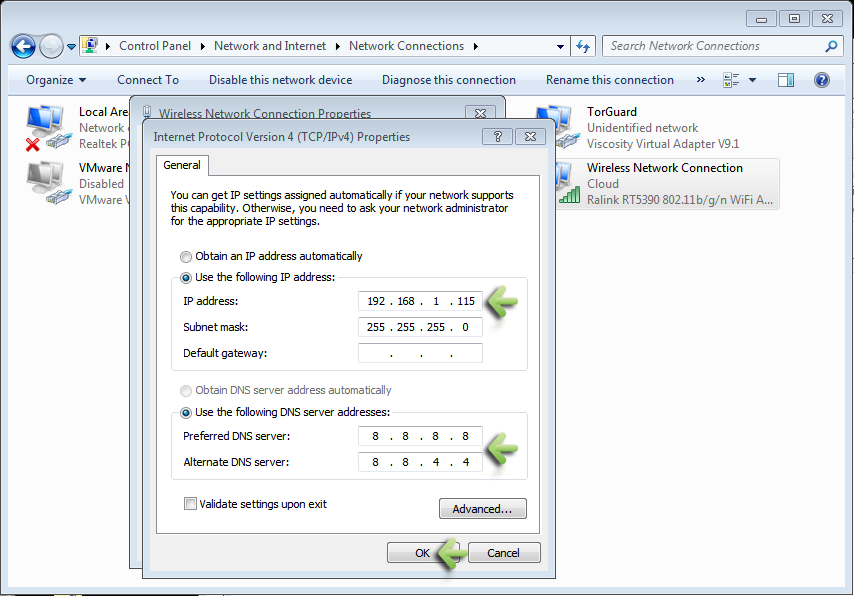
Next, right click your WiFi adapter and select properties. Click “Internet Protocol Version 4” and click the Properties button.

Under the “IP address” enter the static IP we have chosen (in this case 192.168.1.115)
For subnet mask enter “255.255.255.0” and for DNS enter (8.8.8.8 and 8.8.4.4). Click the OK button.
Next we need to setup and run the VPN connection. In this tutorial we will be connecting through OpenVPN using TorGuard’s Viscosity VPN software.
Once the VPN tunnel has been setup open the “Network and Sharing Center” and click on “Change Adapter Settings“.
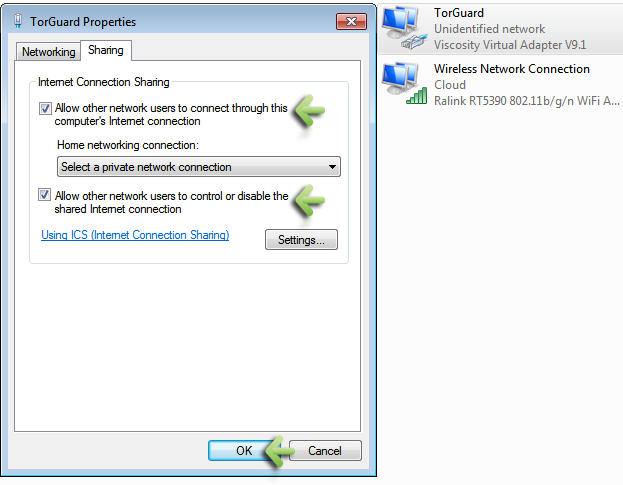
Right click the “TorGuard” connection and click “Properties”. Select the Sharing tab.
Check the “Allow other network users to connect through the computer’s internet conection box” and the “Allow other users to control or disable the shared internet connection” boxes. Click OK.
Next, connect to TorGuard VPN and verify your connection on the Whats my IP page.
That is it! The rest of the settings need to be entered into the device you are connecting to. (PS3, Xbox, Smart TV, ect.)
On that device you should enter the following settings:
IP address: Needs to be on the same subnet as your computer. For example, if your computer is on 192.168.0.5, you could use 192.168.0.6
Subnet Mask: 255.255.255.0
Default router/Gateway: Enter the IP of your computer set earlier: 192.168.1.115
Primary DNS: 8.8.8.8
Secondary DNS: 8.8.4.4