| How to Setup TorGuard OpenVPN on ipad or iphone
Both ipad and iphone VPN service users now have a FREE app to connect to OpenVPN. Found in the itunes store, the new OpenVPN connect app allows you to easily import TorGuard’s VPN server configuration to any ios enabled device. Anonymous VPN service on the go using your ipad VPN! Follow these steps to configure the iPhone iPad or iPod to connect to TorGuard VPN using the OpenVPN app from the istore. Step 1: Download OpenVPN app from the Apple itunes store onto your ipad or iphone.
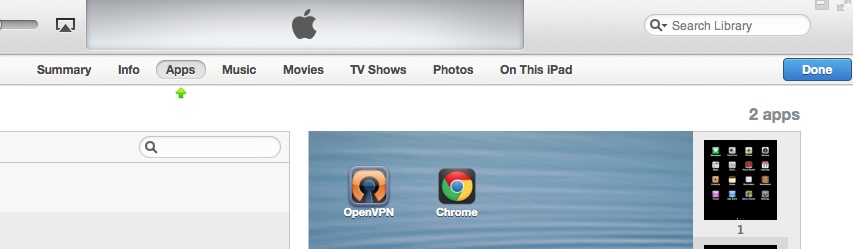
Step 2: Next, connect your ipad to itunes on your computer. Click “ipad” then apps as seen below:.
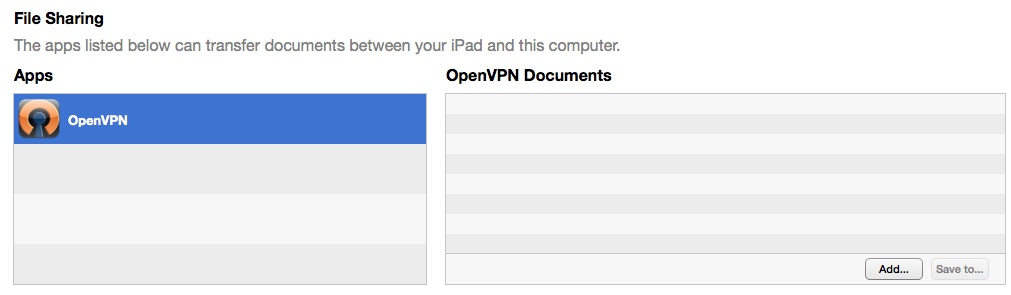
Step 3: Scroll down through the list of apps and select OpenVPN. Under OpenVPN Documents click te “Add..” button. Next, Download the TorGuard ipad VPN config files here and unzip to your desktop.
Step 4: Locate the folder of TorGuard ipad config files that we just downloaded and select all files. Click “Open”.
Step 5: Back on the ipad, you should see a notice that “New profiles are available…” Click the green + icon on each server that you want to import to your ipad.
Step 6: To Connect, tap the server location you wish to connect to and enter your TorGuard VPN username and password. Then switch the connection from “off” to “on” as seen below:
Step 7: Your connected! To confirm, visit dnsleaktest.com to test your IP address on your new ipad VPN.
Signup with TorGuard VPN today and get unlimited ipad VPN services |



You might also like