Setting up a DDWRT VPN Router can be a complicated and daunting task for some. Luckily, TorGuard now offers new software that makes it easy to switch between servers – no geek required. Setup your DDWRT VPN Router in just a matter of moments using this completely automated setup software. Don’t have a VPN Router? Buy DDWRT VPN Routers today at the TorGuard store.
Configuring your DDWRT enabled VPN router to work with TorGuard Anonymous VPN just got easier. Using our easy auto setup software, you can switch servers automatically with the click of a button. This tutorial will explain how to setup OpenVPN on your DDWRT router using TorGuard’s easy setup software.
Step 1.) Download the easy setup software from this link:
Click Here to Download the EASY DDWRT Setup Software
Before running the software, make sure that you are running it from the computer that is directly connected to DDWRT router. Also, verify that you have internet access.
Next, start the software and enter the values explained below:
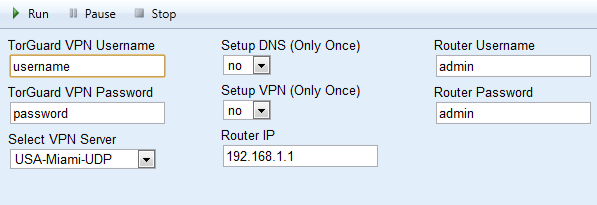
TorGuard VPN Username – enter the VPN username you setup with service.
TorGuard VPN Password – enter the VPN password you setup with service.
Select VPN Server – choose the VPN server you wish to connect to from the drop down menu.
Setup DNS – Select yes (only once) if you have not yet configured your DDWRT router’s DNS settings.
Setup VPN – Select yes (only once) if you have not yet configured your DDWRT router’s VPN settings.
Router IP – Enter you DDWRT Router’s current IP address. (The default IP is 192.168.1.1)
Router Username/Password: Enter the DDWRT Router’s current username and password. (The default is admin:admin)
Click Run!
Next, the software will proceed to configure your DDWRT router with the correct settings and startup script for the server you have chosen. This process can take up to 3 to 5 minutes, so sit back and let the program do all the work.
After your router reboots, you will be taken back to the DDWRT OpenVPN status screen. Wait a few moments while the software refreshes the connection a few times.
After a minute, you should see a connected status as seen below:
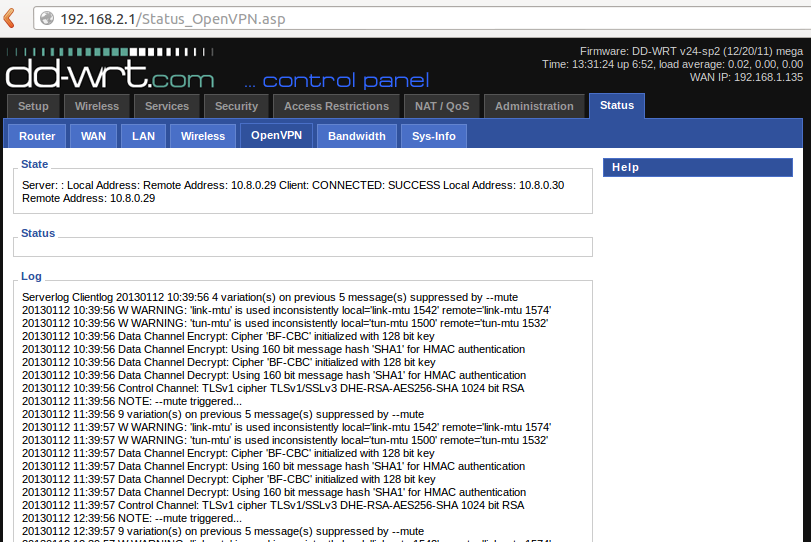
Your DDWRT router is now connected to the VPN!