An anonymous VPN tunnel provides an excellent way to keep your online activity secure from prying eyes. Although TorGuard VPN service is very reliable and will stay connected for weeks on end, there are some instances that may cause an interruption to your internet and VPN. Some examples can include: Power Outages, ISP outages, or the occasional random VPN disconnect. When accidental disconnection occurs, it is possible that random data packets may accidentally become routed through your personal IP address, leaving you unprotected.
How do you protect from leaking your personal IP address in the event of a disconnection? The answer is to use an application specific VPN kill-switch, or a full VPN connection kill-switch.
VPN App Kill-Switch
The easiest way to ensure that no program accidentally routes through your personal IP is to use an application specific VPN killswitch. This feature is built into the TorGuard lite VPN app on all platforms, including Windows, Mac and Linux. For our example we will show the Windows client, however the process is very similar for other platforms.
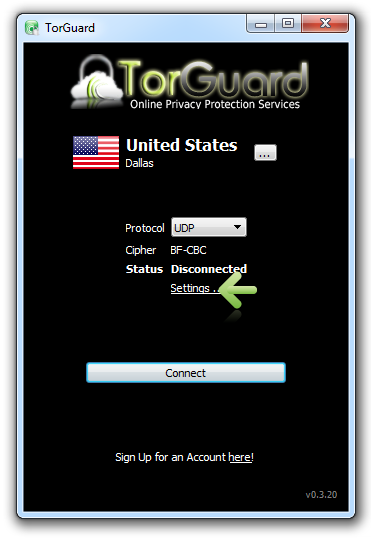
To access the app VPN killswitch, simply click the settings button on the TorGuard app main screen:
Next, click the app kill tab and type the name of the running process you wish to terminate upon VPN disconnection. If you don’t know the process name you can click the select button on the right and choose from a list of active applications. For windows users, type the exact process name (e.g. notepad.exe) while Mac or Linux users only need to type the App name (e.g. transmission).

Click save to apply your settings, then connect and disconnect from the VPN to test your new app killswitch!
VPN Connection Kill-switch and VPN scripts
Another way to protect against accidental IP leaks is to setup a full web connection VPN killswitch. In the event of an accidental disconnection, the killswitch will automatically disable your entire internet adapter. This is useful if you wish to completely shut off ALL internet access upon disconnection. To access this feature, first click the settings link on the TorGuard lite main screen. Then click the “Scripts” tap. Next, download and save our Internet Connection Killswitch script. Click the select button and locate the newly saved script. Next, click the “Execute Scripts” checkbox and click save to apply your changes.
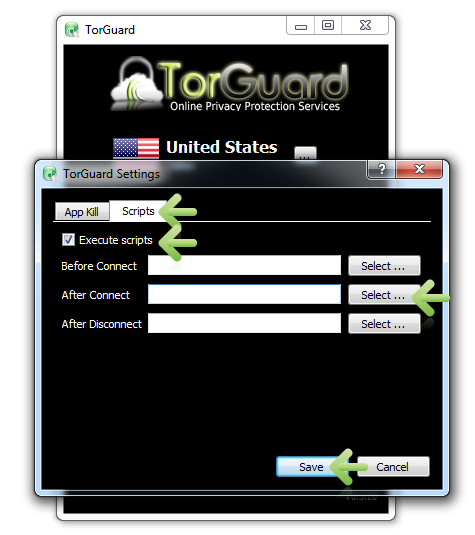
The new VPN Scripts feature allows a high level of customization to one’s VPN. These scripts can automate many tasks upon pre/connect/disconnect of the VPN. Here are just a few examples of batch scripts that can be used in Windows:
– Internet Connection Killswitch
Do you have a custom VPN script you would like to share with other TG members? Drop by our VPN forum and post a link!