

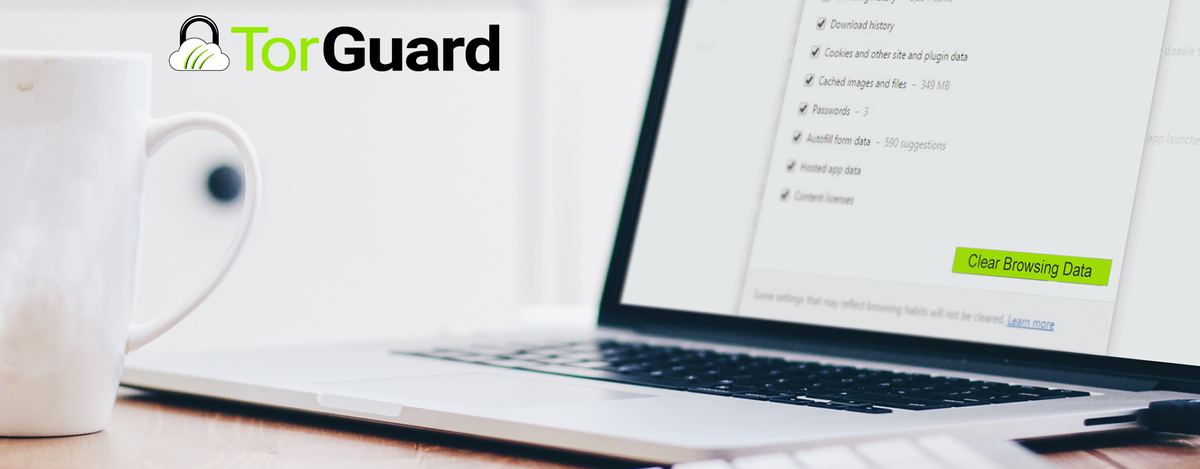
Chrome browser probably knows a little too much about you, and anyone who has access to your laptop or smartphone can easily learn the same things. Even if you aren’t up to anything shady, it’s probably a good idea to delete your virtual paper trail every once in a while.
Why Should I Delete My History?
You should delete more than just your web browsing history. You should delete your cookies and cache as well. The most pragmatic reason to purge the information your browser stores is for hygiene, as it is sometimes called. When your browser is full of stored information, including stuff you don’t need anymore, its performance may lack. Removing the bulk can help it function better and reduce instances of browser crashing.
The second reason is for your privacy and security. If you’ve accessed financial institutions, made online credit card payments, reached out to a lawyer for help with a private matter, or received medical test results online, all of that is still lingering in your browser. If that information gets into the wrong hands, your safety and security can easily be compromised.
How Often Should I Delete My History?
Everyone will give you a different answer to this question. Some people say once a month, some people say once a week. While it’s true that purging this information more often is better for your safety, you should delete it whenever you feel it’s necessary. Once a month is good, but once a week is better. Consider your privacy when creating and adhering to a browser hygiene plan.
How Do I Delete My History?
To delete your history in Google Chrome, start by clicking on the three dots in the upper right corner of the browser.
Hover over “history”, and then click “history”. When you reach your history, you’ll see a vertical menu on the left. Click “Clear Browsing Data”. At this point, a pop up will appear. Toggle over to “Advanced” if “Basic” is selected. The box will ask you how far back you’d like to clear. The “All Time” option will completely purge your browser. There will be a list of boxes you can tick to select what other data you would like to clear. For a full purge, tick every box, including “Cookies and other site data.” You can also choose to purge your saved passwords.
Choosing a Browser that Protects Your Privacy
If privacy is at the top of your priority list, you may want to consider abandoning Chrome browser all together. Chrome’s private browsing “Incognito” mode can make it easier to hide your internet history, but, it’s not as private as one thinks. If you are logged into Google when using incognito mode it is possible for Google to connect the dots with various user-anonymous identifiers and attribute this information to your Google account.
Fortunately, there are many alternative web browsers that protect your privacy in 2019. Many of these options are Chromium based browsers that are customized for optimal privacy settings, like Brave Browser.
Protecting Your Privacy Online
You won’t have to worry about your privacy while browsing if you use a reliable VPN. VPNs like TorGuard can help prevent personal information and activity from being stored or tracked by a website, ISP, or search engine by tunneling your web browsing through an encrypted VPN server. Using a private web browser along with TorGuard VPN is a quick and painless way to stay protected without a second thought. If you aren’t already using a VPN, it may be time to get one.