


Rolling your own VPN server might seem intimidating, but for those who want full root access and complete control, TorGuard’s sister company PureVPS makes it simple. While TorGuard’s Private VPN Cloud offers effortless dedicated WireGuard server setup in the member's panel, PureVPS takes it a step further with easy click-to-deploy VPN options. A new venture by the same team at TorGuard, PureVPS provides instant deployment of any OS, along with hosting for game servers, WordPress, VPNs, and more. With PureVPS’s TurnKey Linux-powered solutions, setting up your own WireGuard VPN server has never been easier or more beginner-friendly.
Why Roll Your Own VPN?
Running your own VPN server offers several advantages, particularly for those who value control and flexibility. First and foremost, it puts you in charge of your data privacy. Unlike third-party VPN providers, where trust in their data handling practices is required, a self-hosted VPN ensures your data stays under your control, minimizing risks of unauthorized access or misuse.
Additionally, hosting your own VPN allows you to customize configurations to meet your specific needs. Whether you want to fine-tune security settings, set up custom DNS servers, or manage unique peer configurations, a self-hosted solution offers unparalleled flexibility. This level of customization is especially valuable for advanced users or businesses with unique network requirements.
PureVPS simplifies the process of running your own VPN server by offering a TurnKey Linux-powered WireGuard deployment. This setup not only reduces the technical barrier but also ensures a seamless experience with features like automated updates, keeping your server secure and up to date with minimal effort.
Step-by-Step Guide to Setting Up Your VPN Server
1. Purchase a VPS from PureVPS
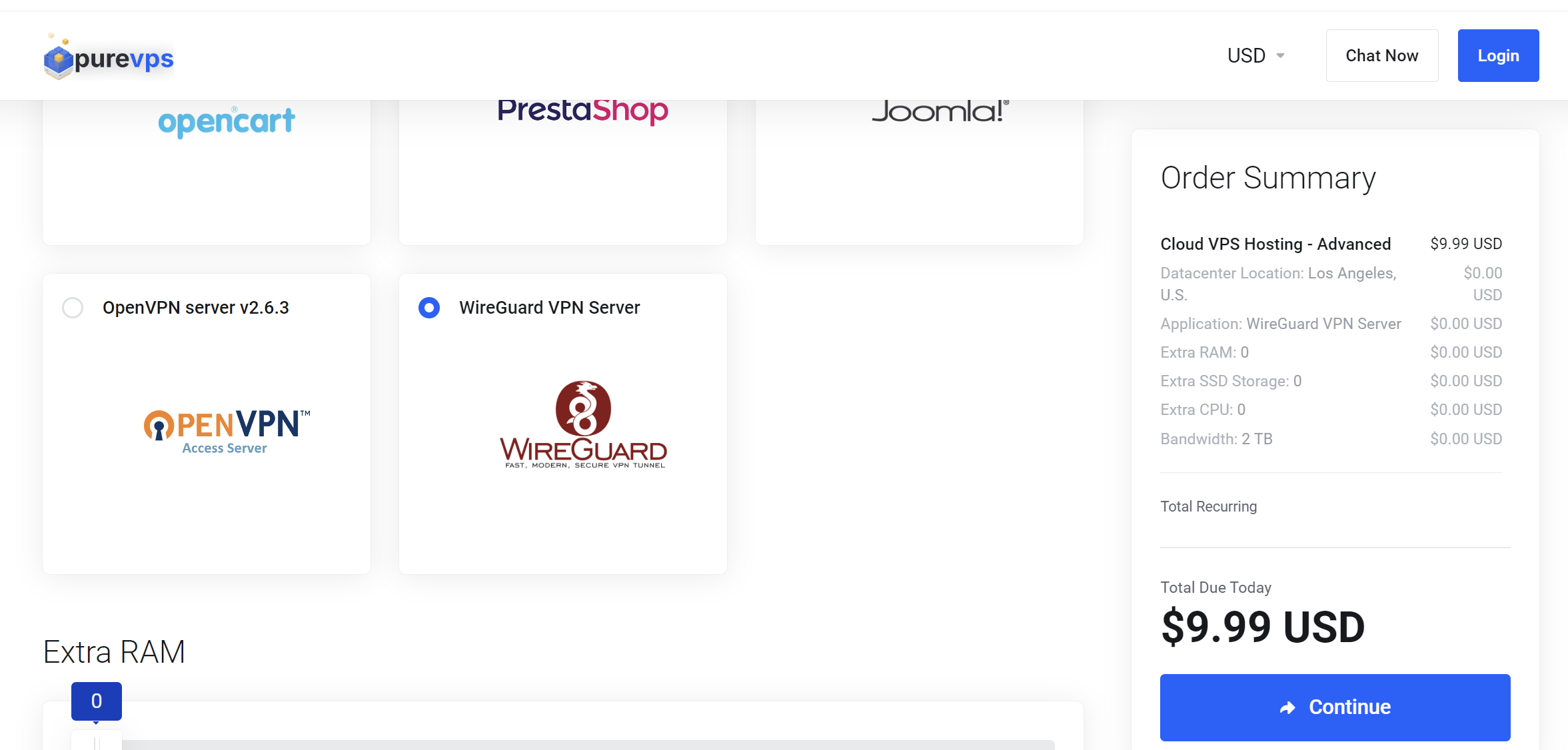
- Buy VPS service from PureVPS.com and select a WireGuard VPN server option.
- Choose your server location and desired resources (CPU, RAM, and storage).
- Opt for the prebuilt TurnKey Linux WireGuard server for ease of use, or for advanced users, manually install WireGuard on your preferred OS.
Why TurnKey Linux? TurnKey Linux is designed to simplify server deployment and management, offering significant advantages for users of all experience levels. With pre-configured environments, it saves time and effort by eliminating the need for manual server setup, making it ideal for beginners and busy professionals alike. Its automated updates ensure your server remains secure without requiring constant monitoring, while the intuitive management console streamlines administration tasks like adding peers, configuring domains, or monitoring server health. For seasoned users, PureVPS also provides the flexibility to purchase a VPS with their preferred OS, offering the option to manually install and configure WireGuard or other applications to suit their advanced requirements.
2. Activate Your VPS
- PureVPS provides instant activation after purchase.
- Once you receive the activation email, log in to your server using SSH with the root credentials provided. Windows users can connect via SSH using tools like PuTTY.
ssh root@your-server-ip
3. Configure Your VPN Server
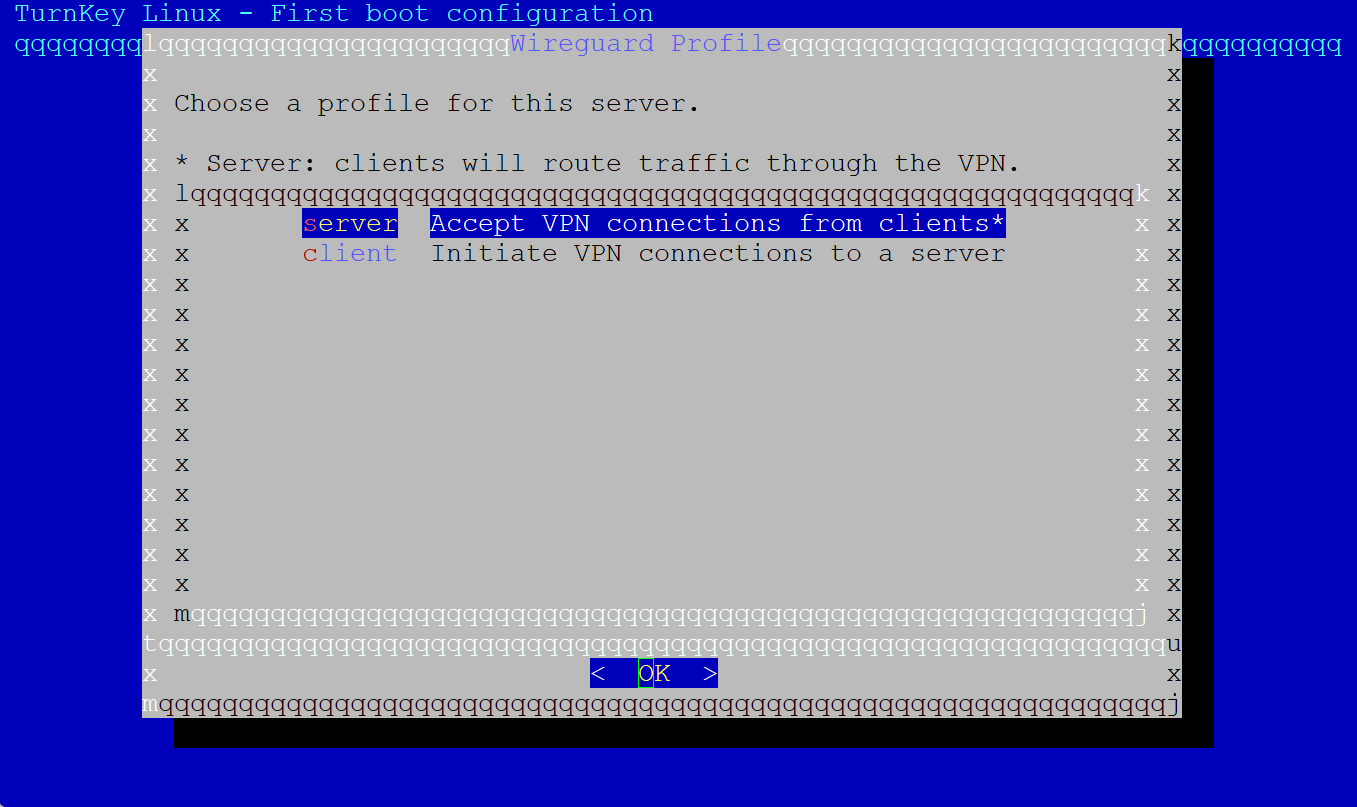
- Choose Server or Client Mode
- Server Mode: Allows devices to connect to this server (default for this guide).
- Client Mode: Connects the VPS to an existing WireGuard server.
- Select an Internal IP Range
- The internal IP range is used for devices (peers) connecting to your VPN. A common default is:
10.0.0.0/8
- The internal IP range is used for devices (peers) connecting to your VPN. A common default is:
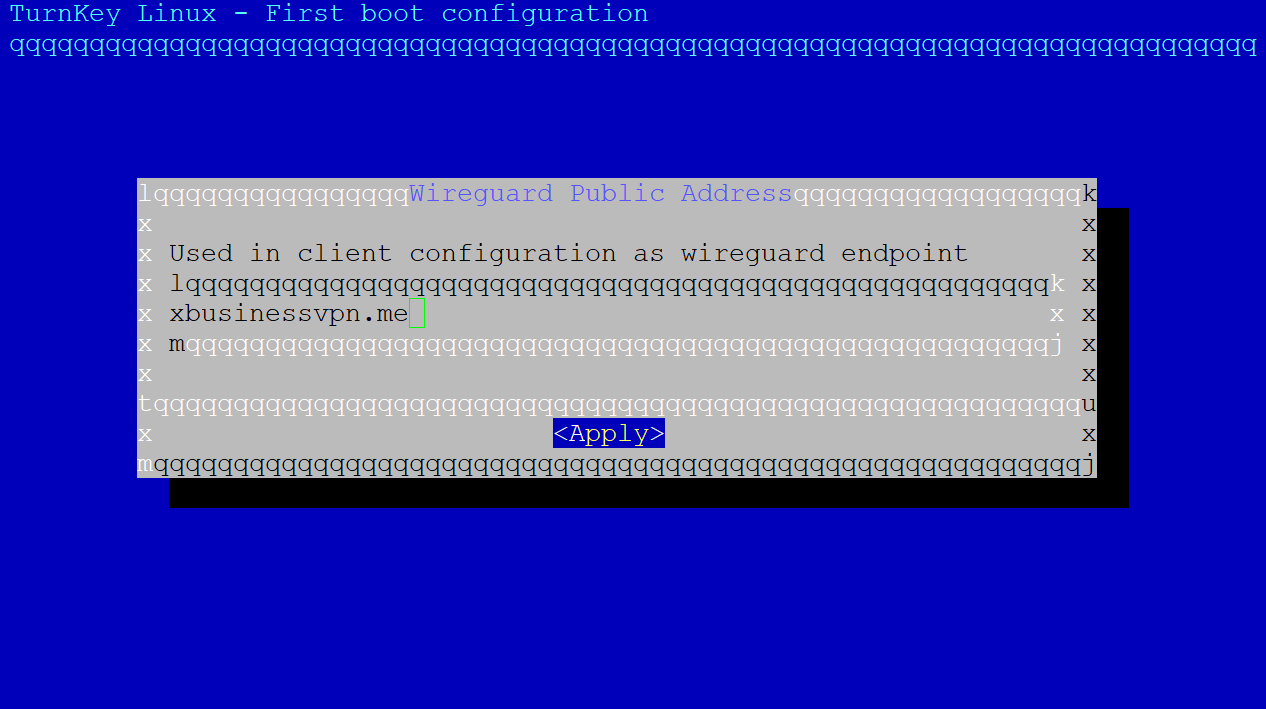
- Set Up a Domain (Optional)
- Point a domain name to your server's IP address via an A record. This simplifies client configuration by using the domain instead of an IP address. In this example we have pointed the domain
businessvpn.me
- Point a domain name to your server's IP address via an A record. This simplifies client configuration by using the domain instead of an IP address. In this example we have pointed the domain
4. Configure TurnKey Linux Settings
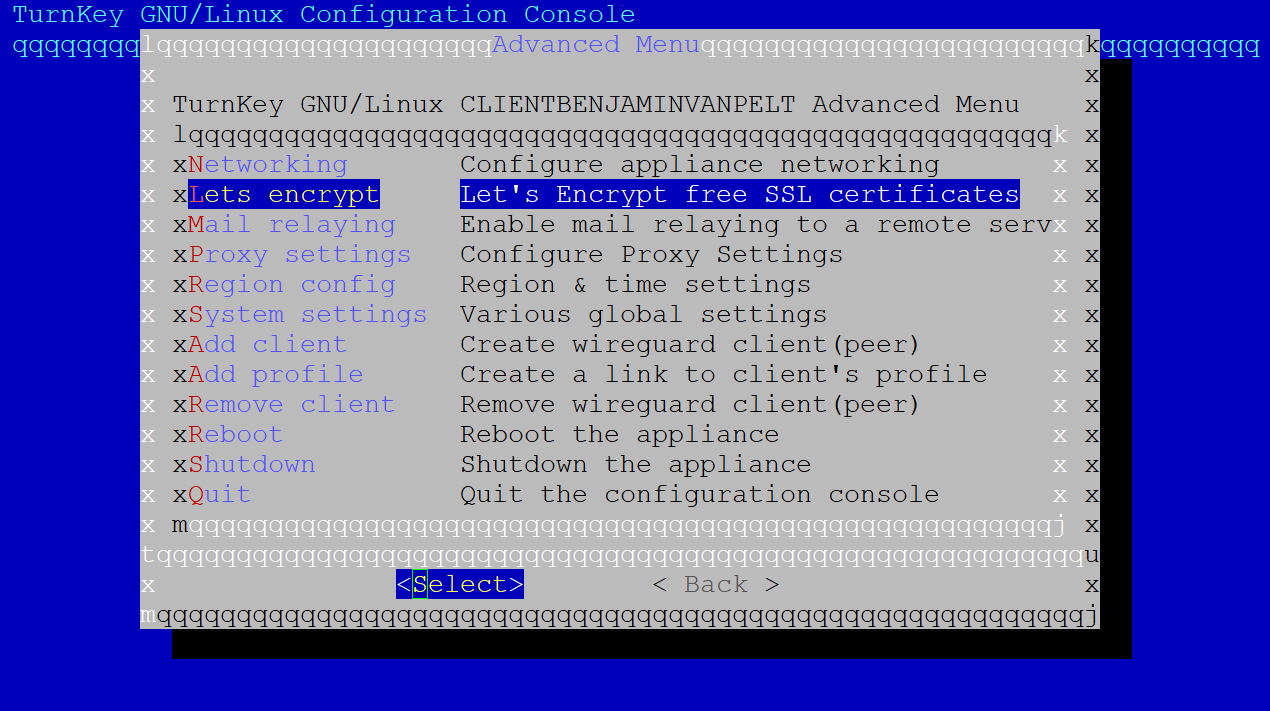
- Skip Auto Backup: Unless you want daily backups, skip this for now.
- System Notifications: Enter your email to receive system updates and alerts.
- Daily Security Updates: Enable this to keep your server secure with the latest patches.
- Let's Encrypt SSL Certificate: TurnKey will automatically install and renew a free SSL certificate for your server.
5. Add Your First Client (Peer)
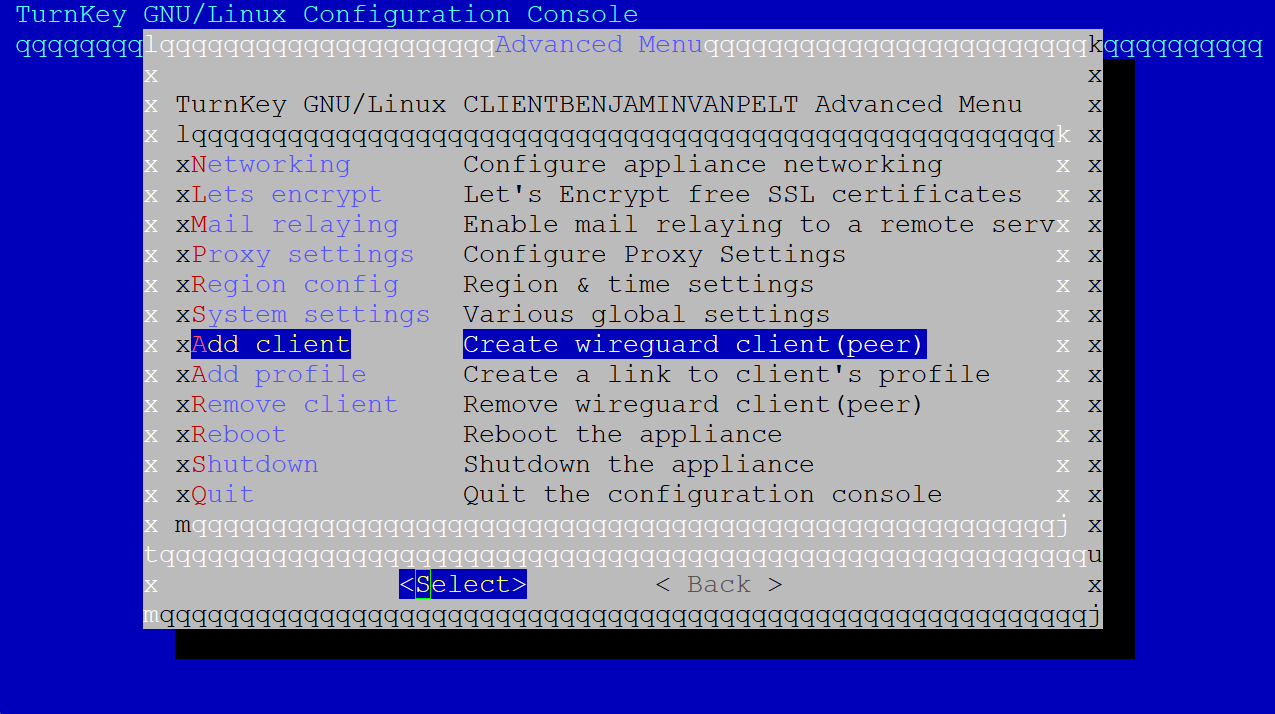
- Configure your first device (peer) to connect to your server.
- Enter the allowed IP addresses for this peer. To allow access from any IP, use:
0.0.0.0/0
Where Are Client Configurations Stored? Client configuration files are stored in: /etc/wireguard/clients/
For example, if you name the peer Laptop1, the configuration file will be:
/etc/wireguard/clients/Laptop1.config
Copy and Edit the Client Configuration
- Open the file:
nano /etc/wireguard/clients/Laptop1.config - Copy the configuration into a text editor on your local device.
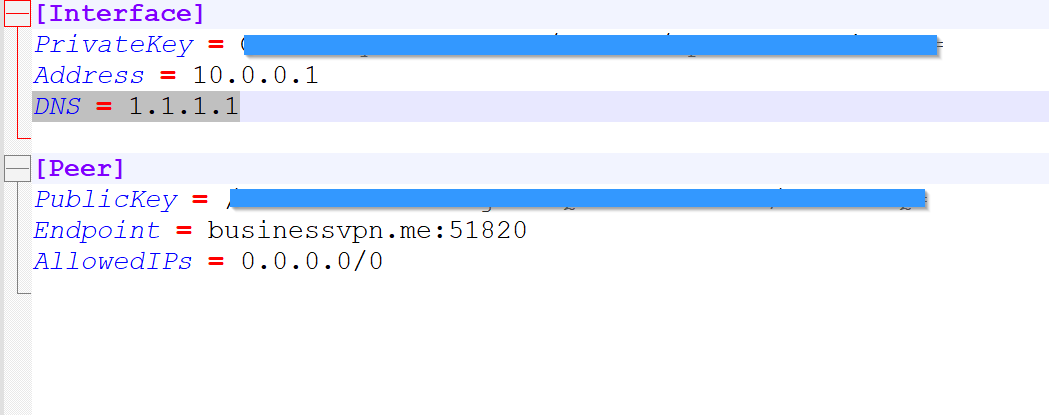
- Add a DNS entry under the
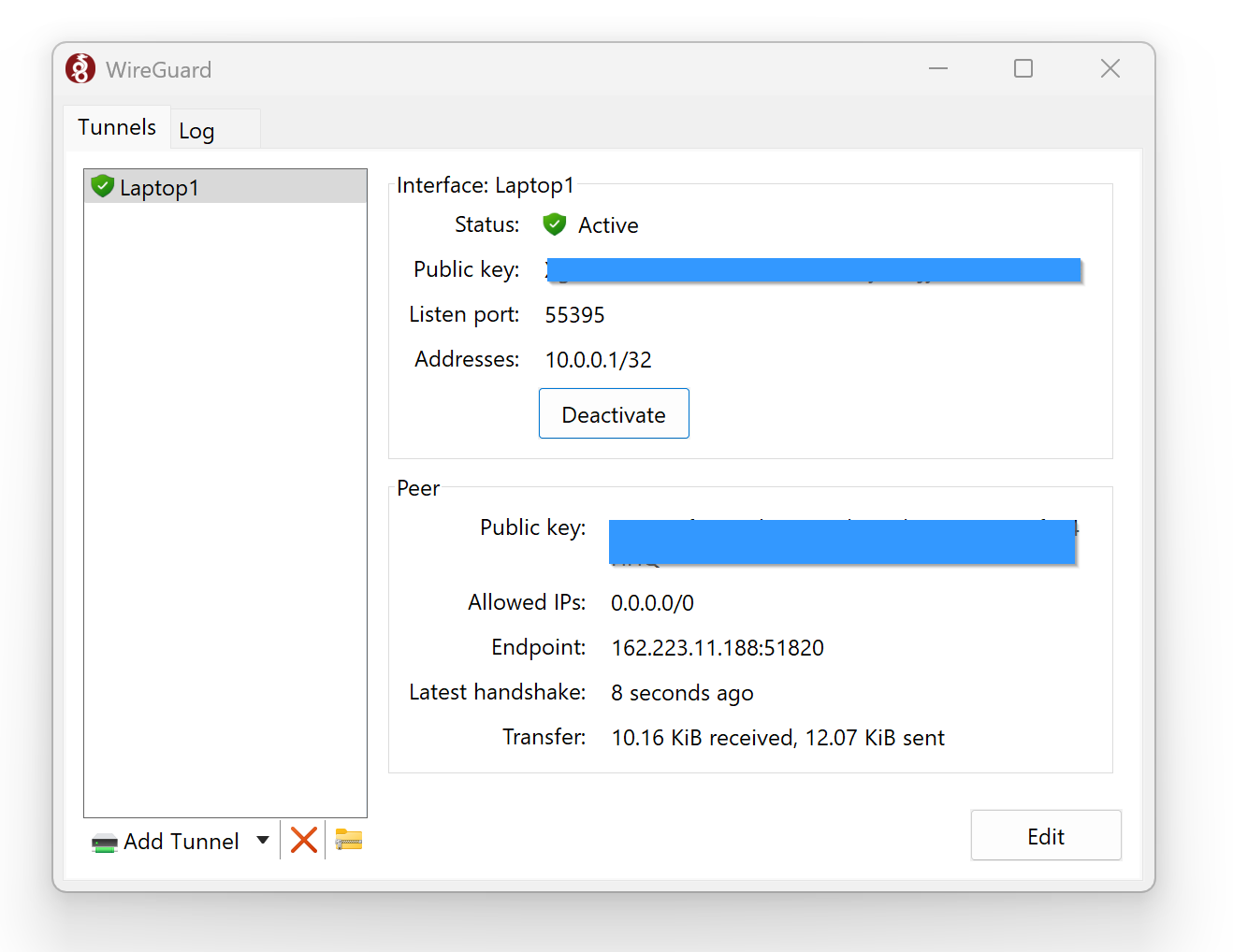
[Interface]section: (Replace1.1.1.1with your preferred DNS, or use an internal DNS like Pi-hole for enhanced privacy.) - Save the file locally and import it into your WireGuard client application.
6. Add Additional Peers
- To add more devices, repeat the peer setup process by entering:
confconsole - Follow the prompts to create additional peer configurations.
Benefits of Using PureVPS + TurnKey Linux
Using PureVPS combined with TurnKey Linux offers a host of benefits that make deploying and managing a WireGuard VPN server effortless and efficient. The ease of deployment is unparalleled—with just a few clicks, you can set up a fully functional WireGuard VPN server, even if you’re new to hosting. TurnKey Linux includes built-in management tools, such as the intuitive confconsole, which simplifies essential tasks like adding new peers, applying system updates, and configuring domains. This solution is also highly scalable, allowing you to easily add or remove peers and expand server resources to meet growing demands. On the security front, automated daily updates ensure your server remains protected against vulnerabilities, while the included Let's Encrypt SSL certificates provide robust encryption and are automatically renewed to keep your connections secure. PureVPS with TurnKey Linux offers a comprehensive, reliable solution for anyone looking to host their own VPN server.
Final Thoughts
Setting up your own WireGuard VPN server is an excellent way to take control of your online privacy and network traffic. Whether you're new to server management or an experienced user, WireGuard's TurnKey Linux options provide a seamless and efficient solution. If you’re ready to take the next step in securing your online activity, TorGuard’s PureVPS offers a fantastic way to get started.