

Vuze is possibly one of the most feature rich torrent clients available today. It is possible to use TorGuard anonymous proxy with Vuze for downloading BitTorrent files anonymously. This is important for keeping your IP address from being displayed to hosts who monitor and track connections.
Here are some easy step by step instructions for Vuze torrent proxy configuration:
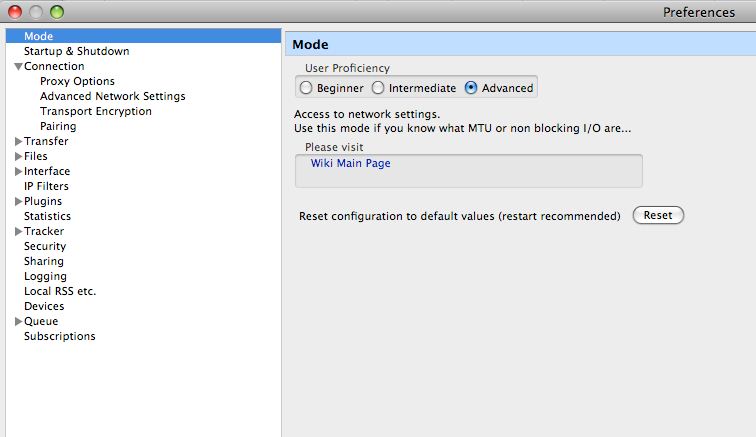
First, make sure you set the mode to “advanced” as seen below:
Click ‘Tool’s from the menu.
Click ‘Options…’
Click the box next to where it says ‘Connection’ in the menu on the left side. This will open more options.
Underneath that, click ‘Proxy Options’.
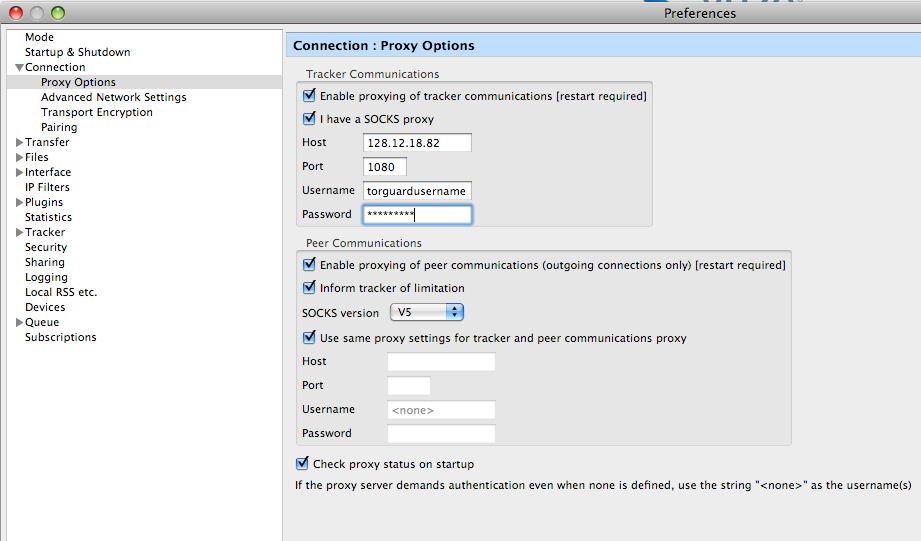
Tick the box that says ‘Enable proxying of tracker communications [restart required].
Tick the box that says ‘I have a SOCKS proxy’.
Where it says ‘Host’, enter the hostname or IP address that you received from TorGuard in your activation email. If your not sure, please contact our support..
Where it says ‘Port’, enter the port (1080).
Where it says ‘Username’, enter your username that you received from TorGuard in your activation email.
Where it says ‘Password’, enter your password that you received from TorGuard in your activation email.
Tick the box that says ‘Enable proxying of peer communications (outgoing connections only) [restart required]‘
Tick the box that says ‘Inform tracker of limitation’ if it is not already selected.
Where it says ‘SOCKS version, select V5 since TorGuard uses socks5 proxies.
Tick the box that says ‘Use same proxy settings for tracker and peer communications proxy’. Optionally, don’t do this if a different one is being used for outgoing connections. In that case you would un-tick it and enter the proper settings in the boxes below.
Click ‘File’ from the menu on the top left.
Click ‘Restart Vuze’. Wait for it and test the connection. If there are problems, un-tick the boxes in instructions 6 and 11 to disable the Vuze proxy and go back to normal.