The newest version of android 4.0 brings many options the the android VPN user without the need to root their tablet. There is now a FREE OpenVPN app for android 4.x users that allows you to setup TorGuard OpenVPN service on your tablet in just a matter of minutes. Here is a tutorial that will show you how:
1.) First go to Google Play and search for “OpenVPN”. Download the latest OpenVPN release for Android as seen in the image below.
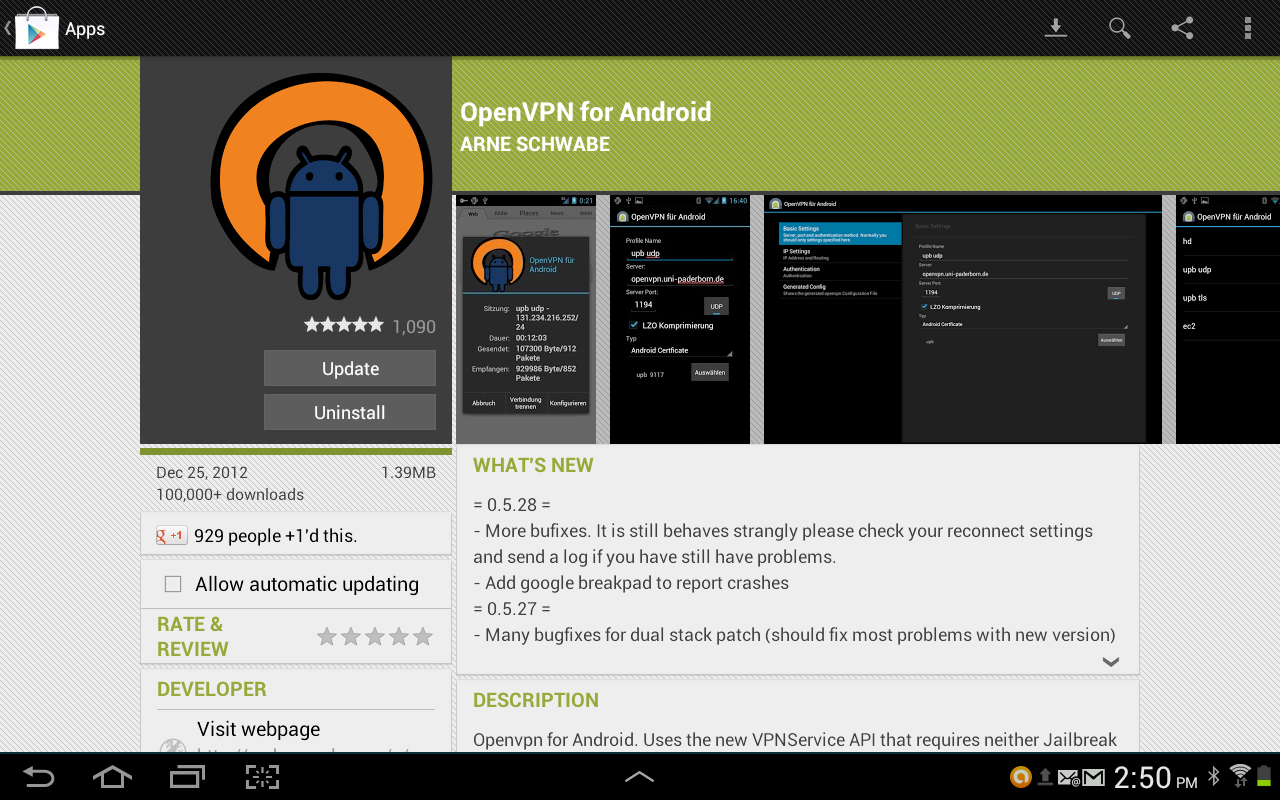
2.) Next, download the latest OpenVPN config files from this link and save them to a location on your sdcard. Make sure to unzip this file before proceeding to the next step. Once you start the OpenVPN application you’ll see a button in the top right corner “Add Profile”. Tap Here…

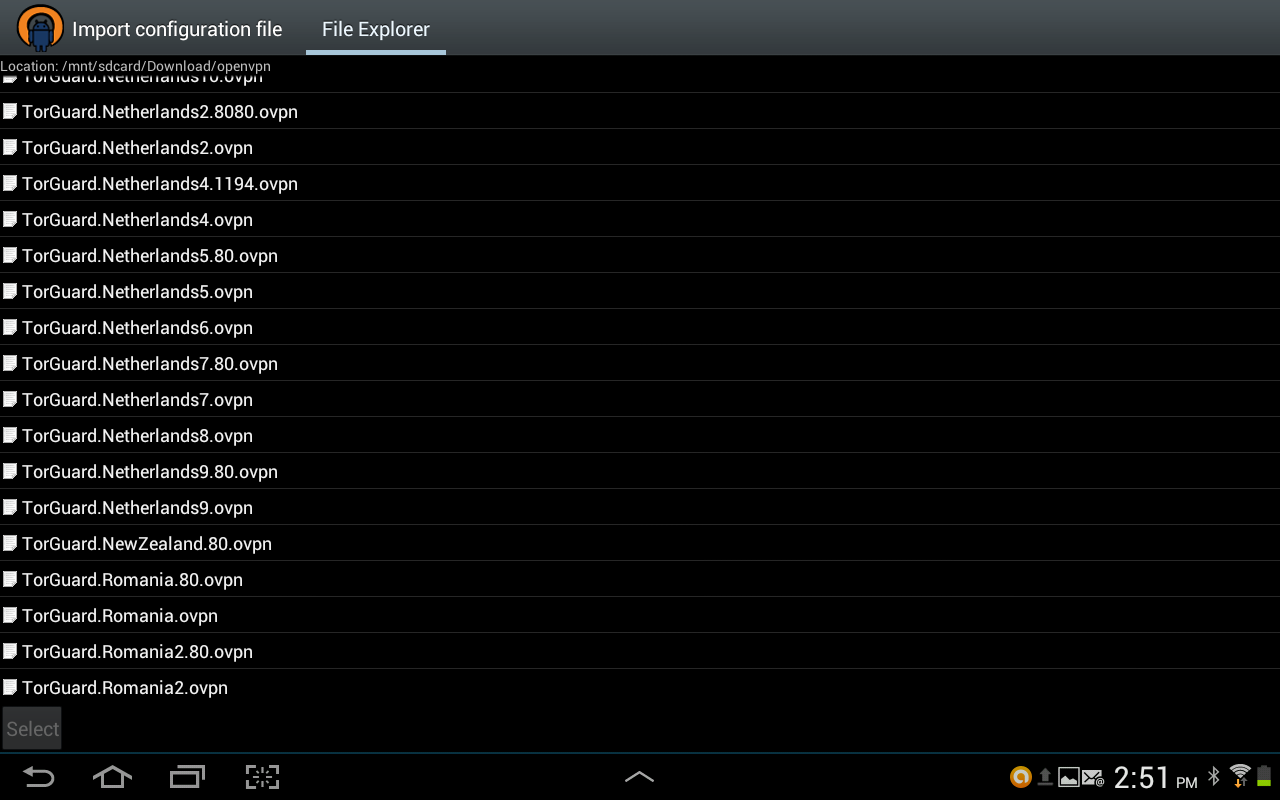
3.) Navigate to your downloads folder and select the folder that you have extracted the TorGuardPRO.zip OpenVPN config files to. These config files represent the TorGuard VPN servers you wish to connect to. Select the .ovpn file of the server you would like to connect to:
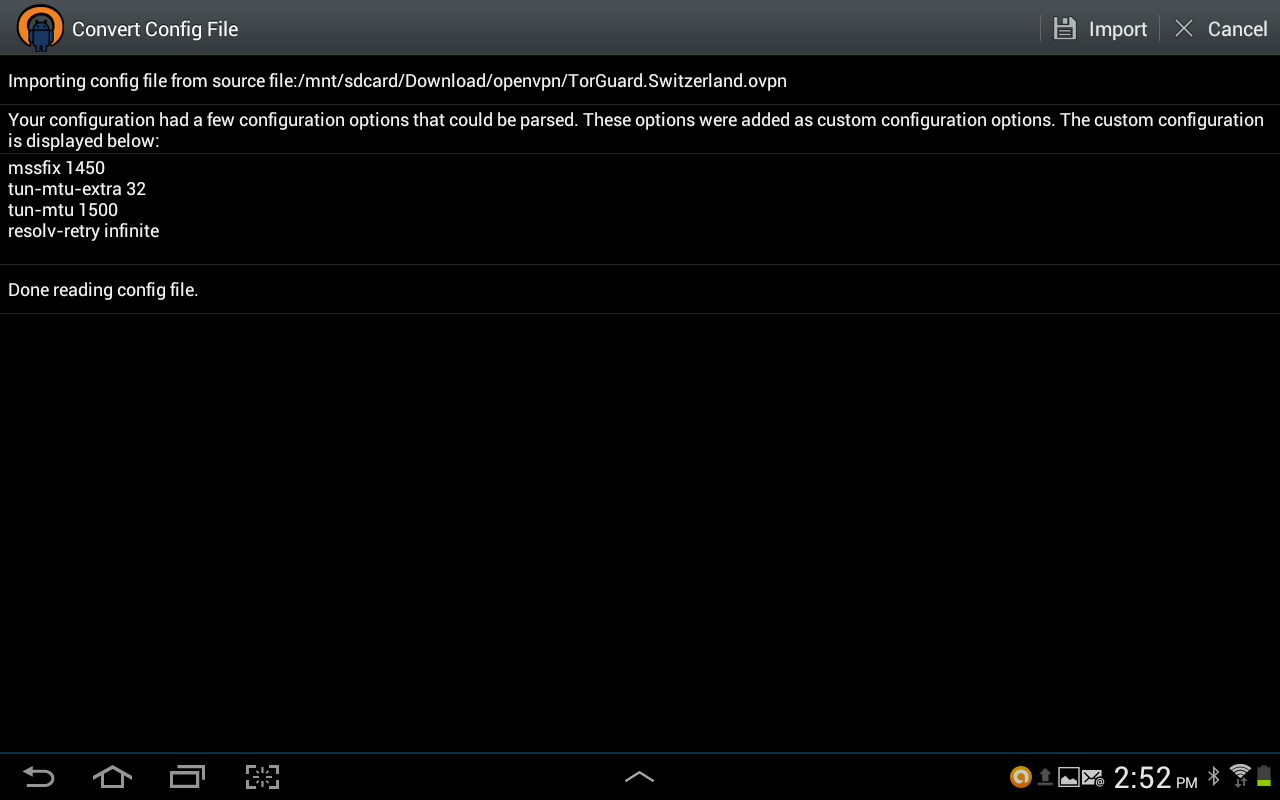
4.) The OpenVPN app should confirm the file, just click “Import” in the top right hand corner to proceed to the next step.
5.) Now just the edit icon of the TorGuard server we just added. On this screen you will need to enter your TorGuard VPN Service activation username and password that was sent to you in the activation email. Once complete, hit back..
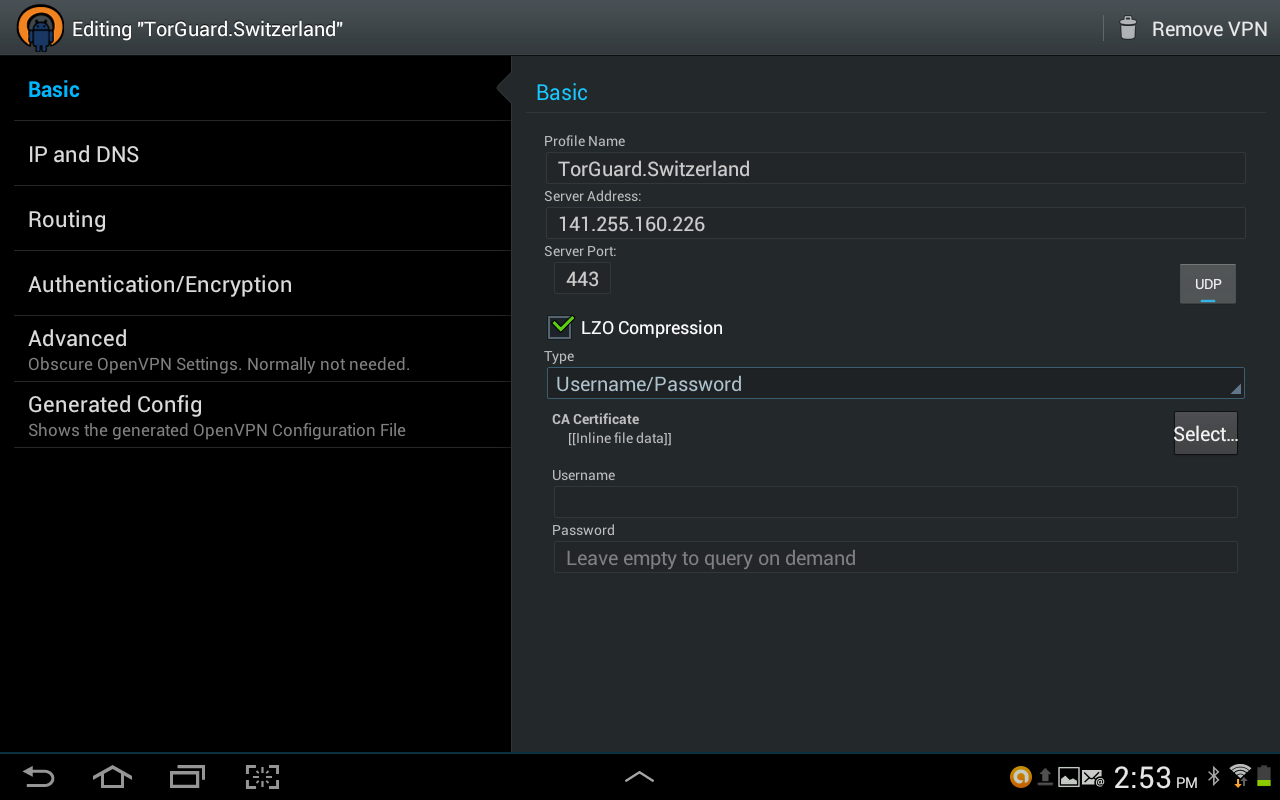
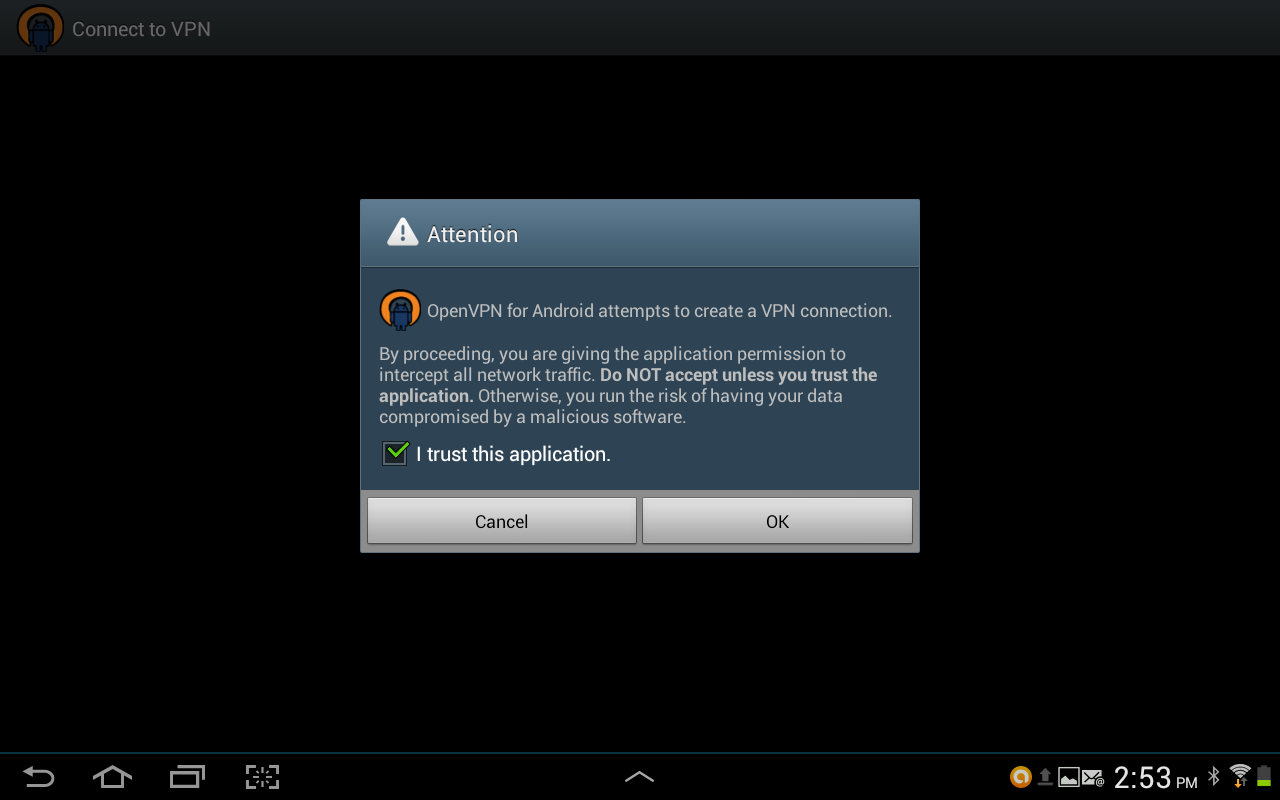
6.) Now tap the server name of the VPN Connection we just created – this should launch the connection process. Click “OK” to trust this application.
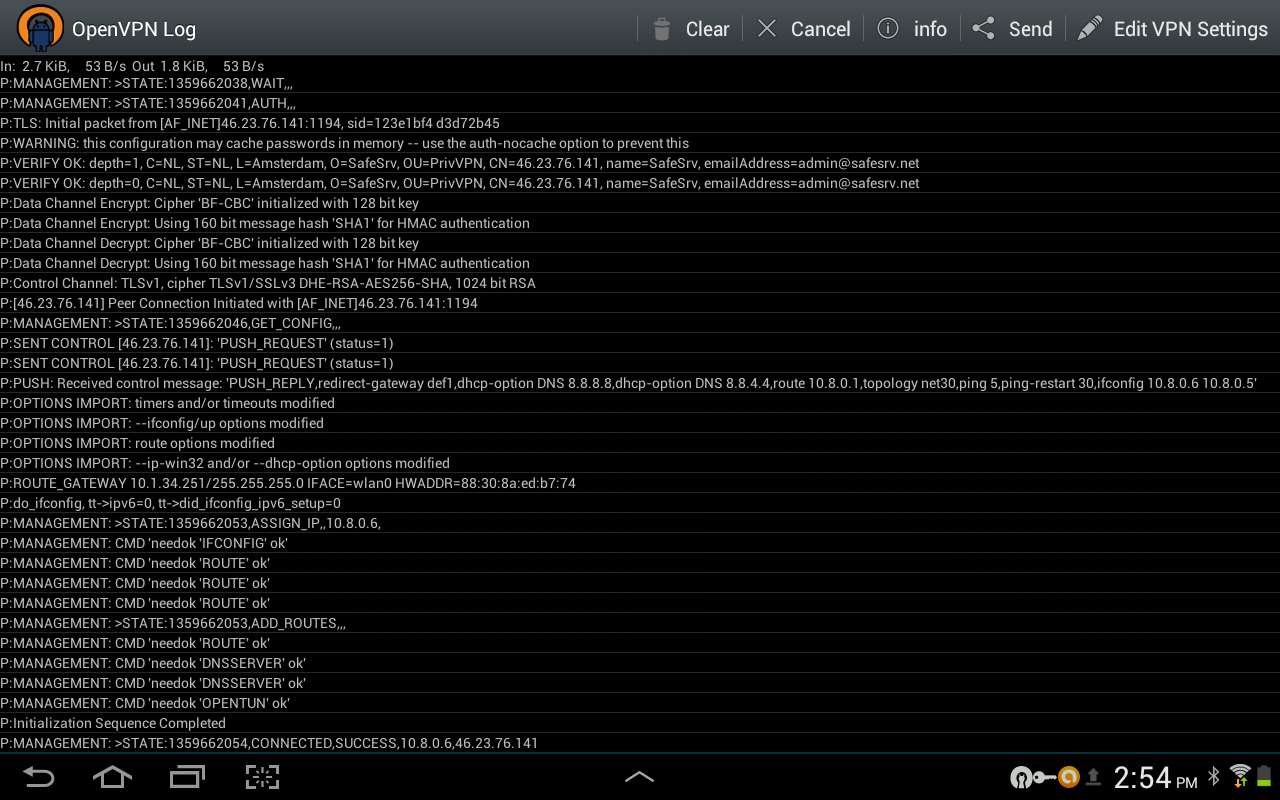
7.) Connected! The following screen should generate connection output similar to below… Your now connected to our OpenVPN service from your android tablet.