TorGuard VPN Service offers multiple connection options for DDWRT like auto connect scripts and Easy DDWRT software. Depending on the make and model of your DDWRT VPN router, these startup scripts may not work correctly. In these cases it is necessary to add the settings to DDWRT manually. Don’t worry, you don’t have to be a geek to setup an Anonymous VPN on your DDWRT router. In this how-to we will walk you though step by step.
| Let’s get started:
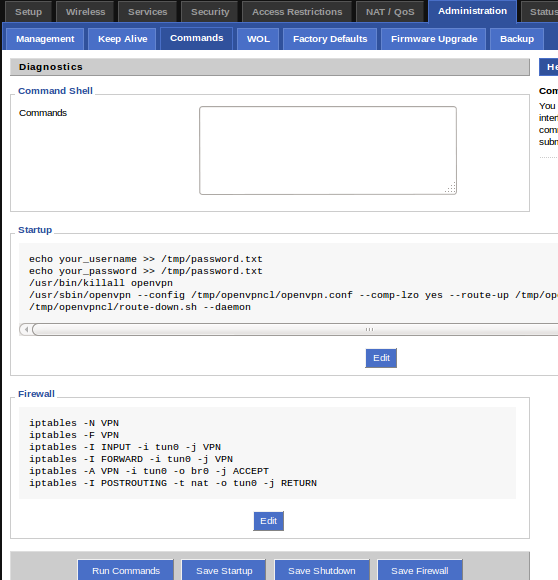
1.) Type the router’s local IP address into your web browser’s URL bar and login into your router. By default, this is typically 192.168.1.1 Click the Administration tab, then click the commands tab. Copy/paste the following and click the Save Firewall button.
Next, copy/paste the following into the commands button. Be sure to enter your TorGuard VPN Username and Password, then click Save Startup.
Make sure to replace “TorGuard_Username” and “TorGuard_Password” with your current VPN username and password. Below is what the screen should look like:
2.) Now we need to download the latest TorGuard OpenVPN config bundle to obtain the IP address, Port, and Certificate info. Open the .ovpn file of the server you wish to connect to and note the information highlighted below:
Next, click the Services then VPN Tab at the top. Click Enable under “OpenVPN Client” and input the following settings: Set the Server IP/name to the IP of the server you wish to connect to. (As seen in image above)
Copy and paste the contents of ca.crt you wish to use into the CA cert field. (You can find the exact location as seen in image above) Click SAVE
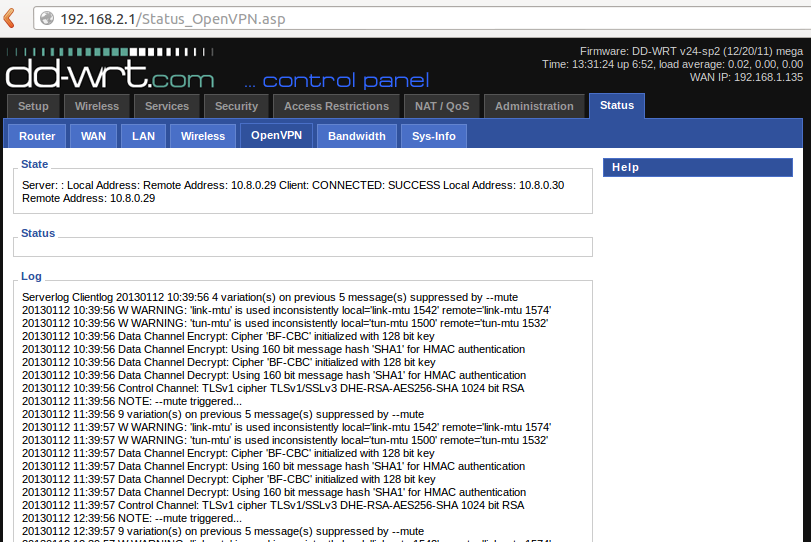
Next, reboot your router! After your router reboots, you will be taken back to the DDWRT OpenVPN status screen. Wait a few moments while the software refreshes the connection a few times. After a minute, you should see a connected status as seen below:
Your DDWRT router is now connected to the VPN! |