

We highly suggest using OpenVPN for better security, however PPTP VPN connections can come in handy for something as simple as streaming Netflix. This tutorial describes how to configure and setup a PPTP VPN connection in Ubuntu GNU/Linux using the network manager. On the latest version of Ubuntu, PPTP VPN options come standard however we will cover the install process.
If not already installed you will first need to install the Ubuntu PPTP VPN package:
One way to do that is to install the Ubuntu network-manager-pptp package with synaptic:
1. Go to System -> Administration -> Synaptic Package Manager and open Synaptic.
2. Search for ‘vpn’.
3. Press the install button.
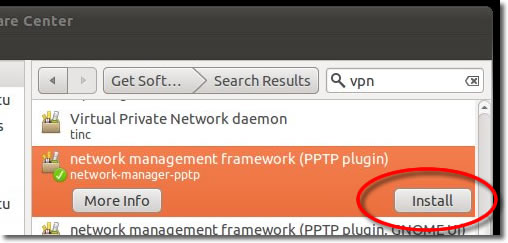
Another way is to install the Ubuntu network-manager-pptp package is from the command line: sudo apt-get install network-manager-pptp
then run:
sudo /etc/init.d/dbus restart
How to configure the PPTP VPN connection in Ubuntu Linux:
1. Network Manager (Network connections)
Click on the ‘Network Manager’ icon on your desktop bar ‘Notification Area’. This icon can be in the shape of 2 computer screens or arrows or a signal meter if its a wi-fi connection that you use.
Or, search for “network connections” and click the icon.
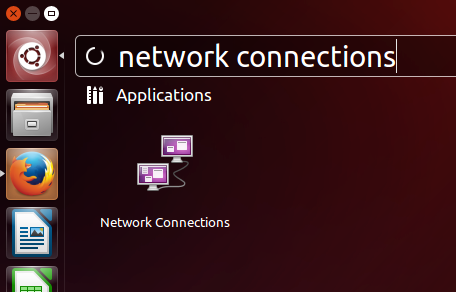
2. Create VPN
On the Network Connections menu click the “Add” button:
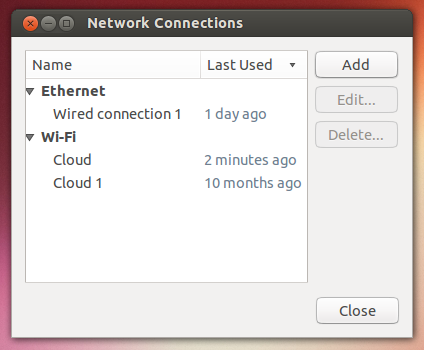
3. Choose Connection Type
Next, select the connection type as “Point-to-Point Tunneling Protocol (PPTP)” and click create.
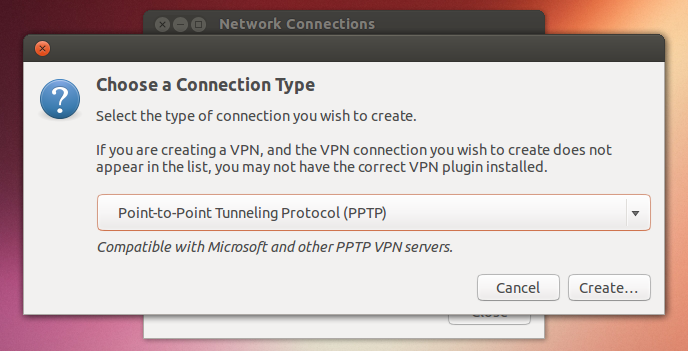
4. Choose PPTP VPN Server
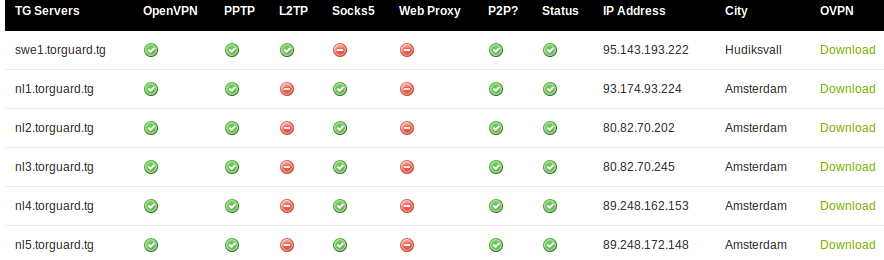
Log into the torguard.net member’s area and visit the server status page. Copy the PPTP IP address of the server you wish to connect to.
5. Create the VPN
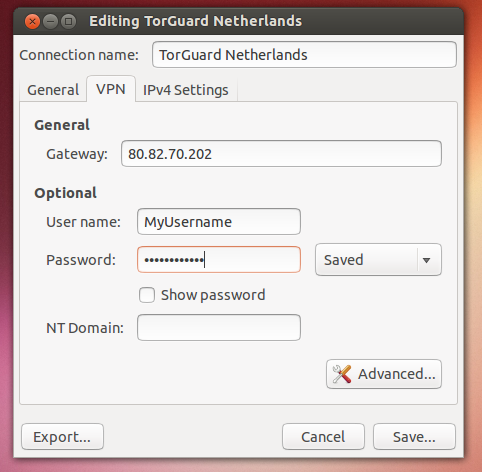
Next, back on network manager window paste the IP address of the server you wish to connect to under “Gateway”. Enter your TorGuard VPN username and password and click the advanced button.
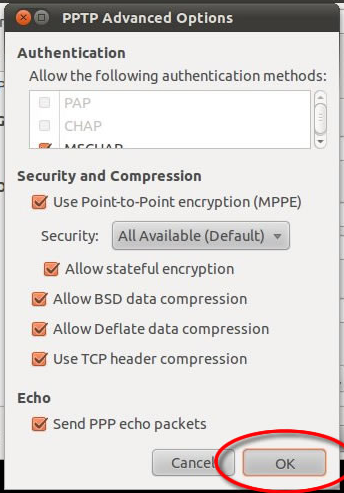
Enter the advanced settings exactly as below and click OK. Check all of the ‘Security and compression’ options, this usually means placing a check in the ‘Use point to point encryption MPPE’, ‘Allow Stateful Encryption’ and ‘Send PPP echo packets’ checkboxes, then click on ‘OK’. Also now click save on the network manager window. Your PPTP VPN connection is now setup and ready to connect to.
6. Connect to the VPN
Connecting the PPTP VPN server:
Open Network Manager
Click onto the Network Manager icon in the taskbar.
Choose Connection
Click onto the newly created VPN Connection from the ‘VPN Connections’ sub menu.
Connected!
Once Connected you will see a small padlock on the network manager icon.