TorGuard offers easy to install OpenVPN software in the downloads area (our most popular option), however some people still need to use PPTP VPN. For this reason we’ll cover in a few easy steps how your can configure a PPTP VPN server on Mac OSx Lion using TorGuard VPN Service.
This tutorial will show how in a few steps one can setup a PPTP VPN connection using Mac’s built in support.
1.) To begin, click the apple logo in the top left corner and select “system preferences“.
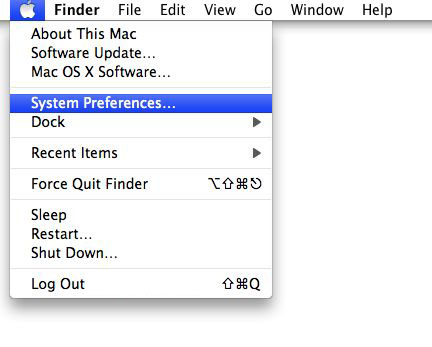
2.) Click “Network” icon under Internet and Network as seen below.

3.) Click the + icon in the bottom left corner to add a new VPN Network

4.) Under Interface, click the drop down and select VPN.

5.) Under VPN Type, select PPTP:

6.) Under Service Name, Type the label for the TorGuard VPN Your connecting to. Examples: TorGuard VPN, Or TorGuard Canada,TorGuard Netherlands, ect. When finished, click create.
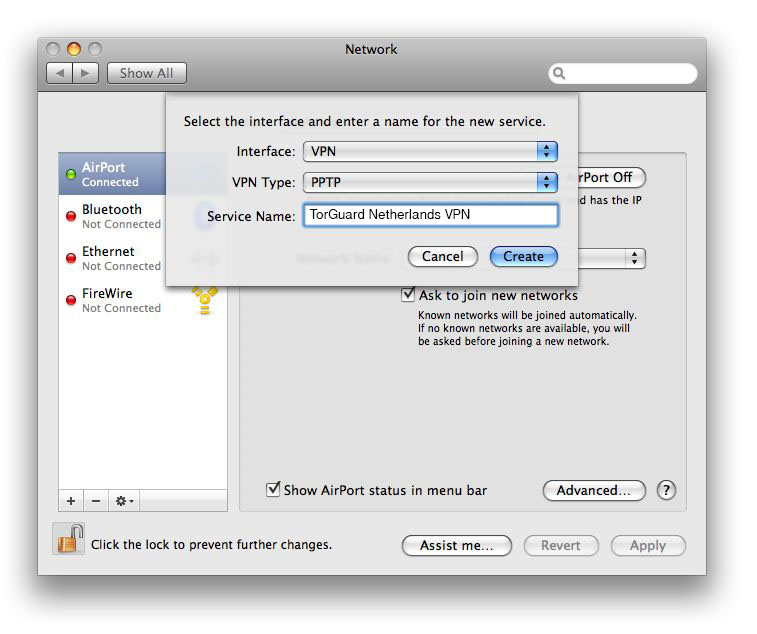
7.) Under Server Adress, enter the IP of the TorGuard VPN server you wish to connect to. This list can be found in your activation email, or in the member’s area. Under Account Name, type your VPN Username you selected (also in your activation email).

8.) Click the Authentication Settings button, and under password enter your TorGuard VPN password. (Found in your VPN Activation email)
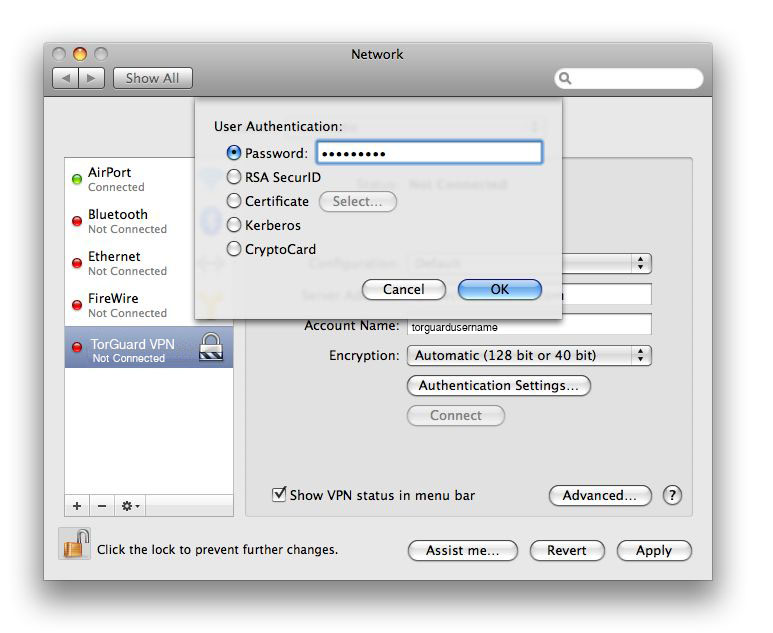
9.) To save your VPN settings, click the apply button.

10.) Now to connect. In the top right click the network icon, and select connect under your newly created VPN network.
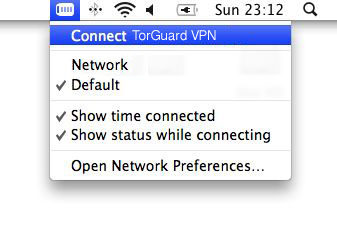
11.) That’s it! Your now connected via PPTP VPN to your TorGuard VPN service.