This VPN how-to describes how to connect to a TorGuard SSTP VPN server by using the Microsoft SSL-VPN Client (VPN over HTTPS) which is bundled with Windows.
MS-SSTP (Microsoft Secure Socket Tunneling Protocol) is a VPN protocol which is developed by Microsoft Corporation. This protocol implements PPP over HTTPS (SSL) and capsules all user packets on TCP So it can bypass even the most strict firewall or VPN blockade. This means those located behind the great firewall of China or Iran can tunnel their web connection without fear of it becoming blocked. SSTP VPN tunnels are virtually invisible and impossible to distinguish as to a network admin it will appear as regular SSL traffic.
Bypass Even The Toughest VPN Filters

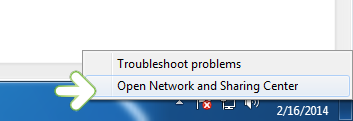
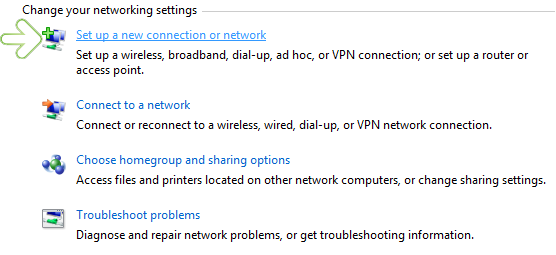
Select the option Set up a new connection or network
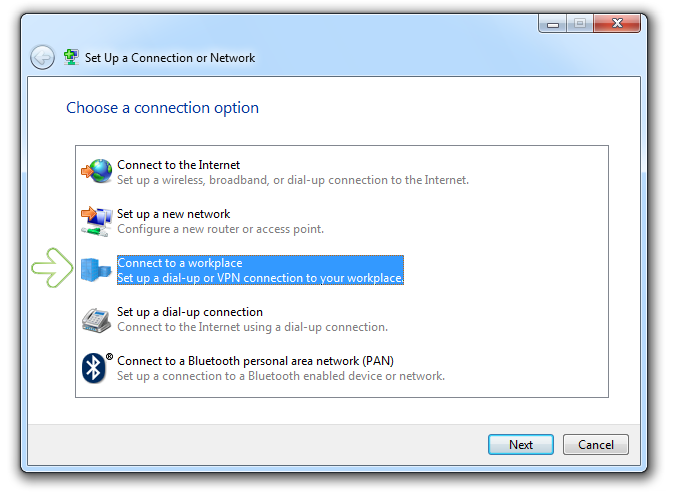
Next, select connect to a workplace as seen below:
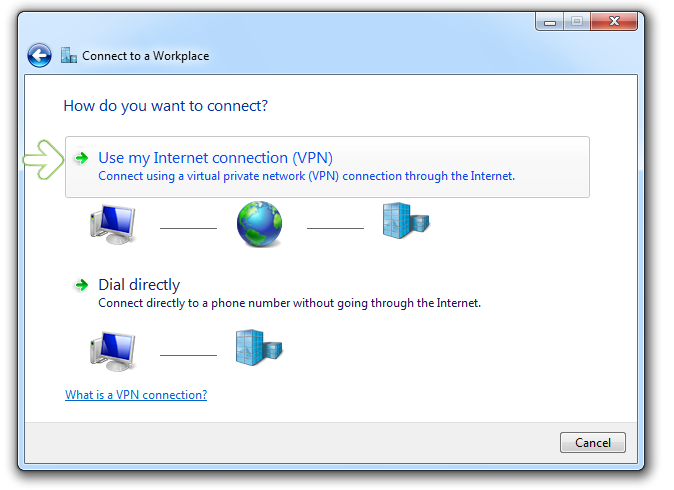
Select “Use my Internet connection (VPN):
In the nrxt step we will enter the SSTP VPN server you wish to connect to. You can find this information on the “My VPN Servers” page in the torguard.net members area. For this example we will connect to “sstp.usa.torguard.org”. Click Next.

Next, enter the TorGuard VPN username and password. This information is seperate from the torguard.net member’s area. Once the username and password is entered correctly, click “create”.

This will add a new SSTP VPN connection option in the network connection menu. To activate the SSTP VPN tunnel, just click the connect button:

This will bring up the connect menu. First click the properties button to verify the settings below.
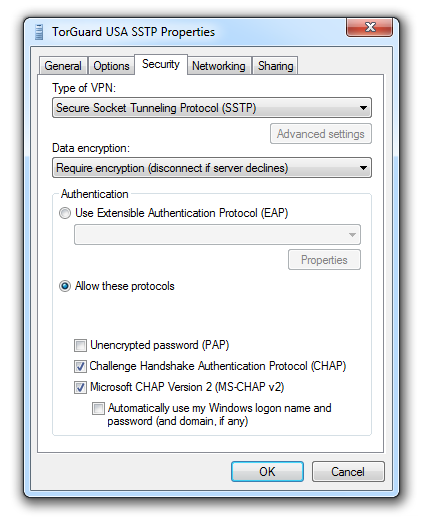
Next, click the Security tab and under “Type of VPN” select SSTP. Click OK to save.
If the user/pass is not already added, enter it and click the connect button.

That’s it! You are now connected to TorGuard’s SSTP VPN services.