This VPN how-to describes how to connect to a TorGuard “Stealth” SSTP VPN server by using the built in Network Manager in Ubuntu.
MS-SSTP (Microsoft Secure Socket Tunneling Protocol) is a VPN protocol which is developed by Microsoft Corporation. This protocol implements PPP over HTTPS (SSL) and capsules all user packets on TCP So it can bypass even the most strict firewall or VPN blockade. This means those located behind the great firewall of China or Iran can tunnel their web connection without fear of it becoming blocked. SSTP VPN tunnels are virtually invisible and impossible to distinguish as to a network admin it will appear as regular SSL traffic.
Bypass Even The Toughest VPN Filters

This tutorial explains how to setup a SSTP VPN connection on Ubuntu with TorGuard.
Step 1.
For SSTP access in network manager we must first download and install the packages below:
64bit: http://torguard.net/downloads/Ubuntu-SSTP-64bit.zip
-or-
32bit: http://torguard.net/downloads/Ubuntu-SSTP-32bit.zip
Download one of the packages above and save the zip file to your downloads folder.
(These files can also be downloaded from sourceforge.)
Step 2.
Click on the home button and start the Terminal Application.

Step 3.
Go to your default downloads folder and unzip and install the correct 32bit or 64bit packages with the commands below:
cd ~/Downloads/
unzip Ubuntu-SSTP-32bit.zip
sudo dpkg -i *.deb

Step 3.
Next, click on the Network Manager icon on your top desktop bar. This icon can be in the shape of 2 arrows or a signal meter depending on if it is a Wi-Fi connection.
Select “VPN Connections” then click “Configure VPN…”.

Step 4.
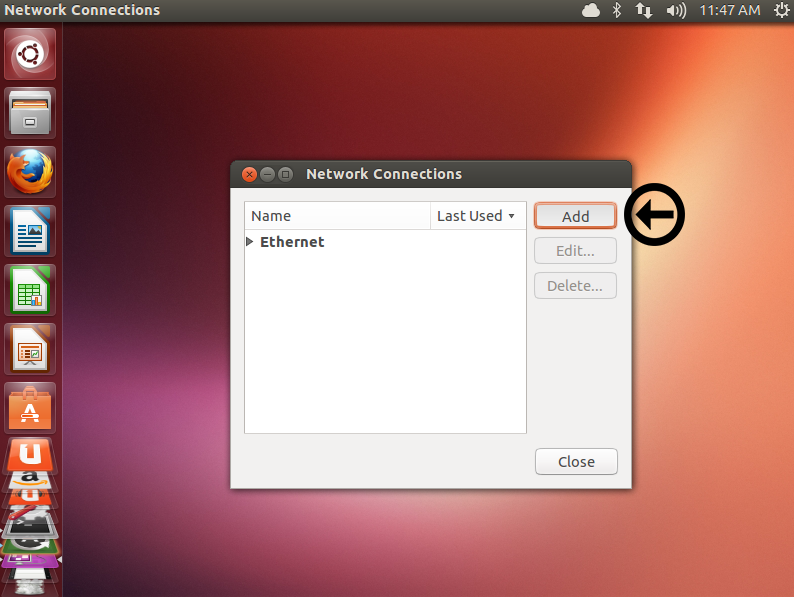
Click the Add button.
Step 4.
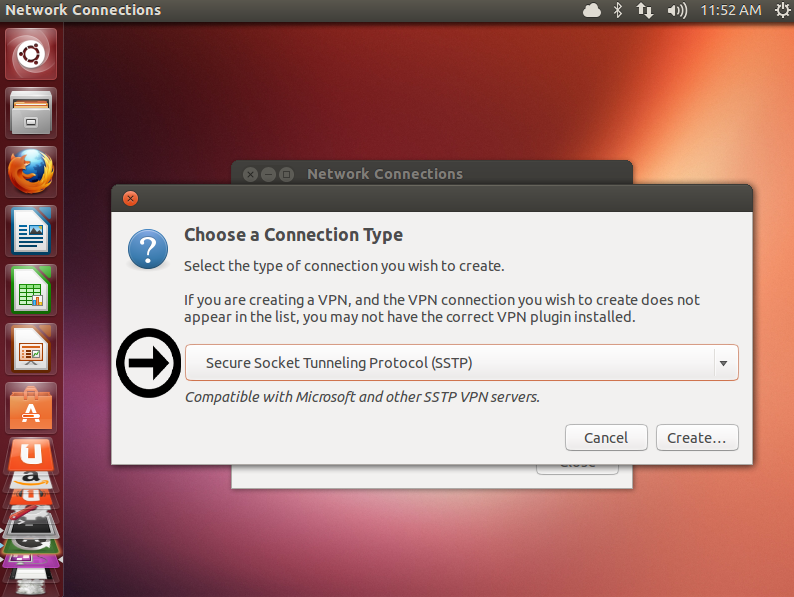
Click the drop down menu and select Secure Socket Tunneling Protocol (SSTP). Click the Create button..
Step 5.
Click the drop down menu and select Secure Socket Tunneling Protocol (SSTP). Click the Create button..
Step 6.
Enter the Connection name as TorGuard VPN (US or UK).
Enter SSTP VPN Gateway as sstp.usa.torguard.org and TorGuard VPN User name and Password.
Check option Ignore certificate warnings
Click “Save…” to setup the VPN connection.

Step 7.
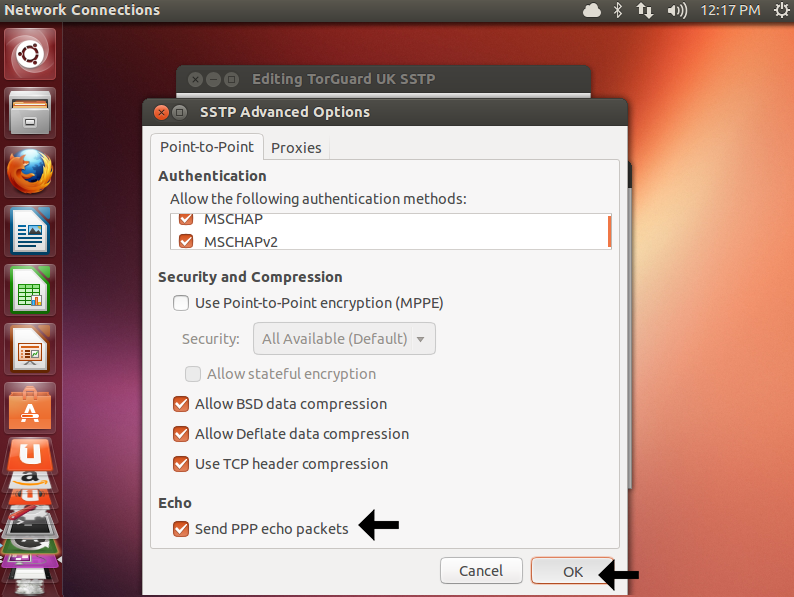
Check the option “Send PPP echo packets.”
Click Ok to save these changes.
Step 8.
To connect to the SSTP VPN, click the Network Manager icon and select VPN Connections. Click the newly setup option “TorGuard SSTP USA”.

Step 9.
After a short period the VPN should display a connection successful message: