TorGuard has just released a brand new VPN client for Linux users. This newly updated app is powered by OpenVPN and features improved performance and stability on any Linux system. Additionally, the user interface has also been updated to allow for easy navigation through the VPN server selection menu. TorGuard is recommending all Ubuntu users download and begin using this new OpenVPN app for the best possible experience.
In this tutorial we will show how simple it is to setup the new TorGuard VPN app on Ubuntu (Debian) Linux distributions.
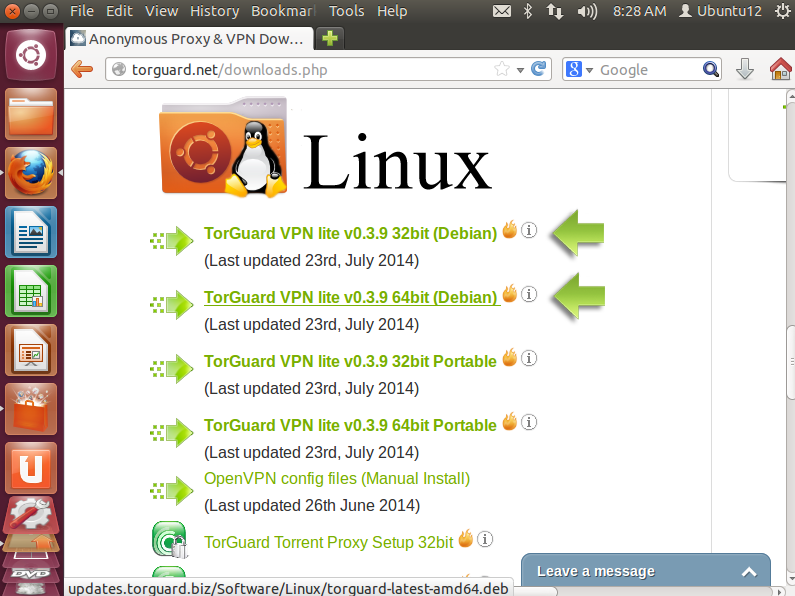
| 1.) First, navigate over to the TorGuard downloads page and download either the 32bit or 64bit Debian package for install.
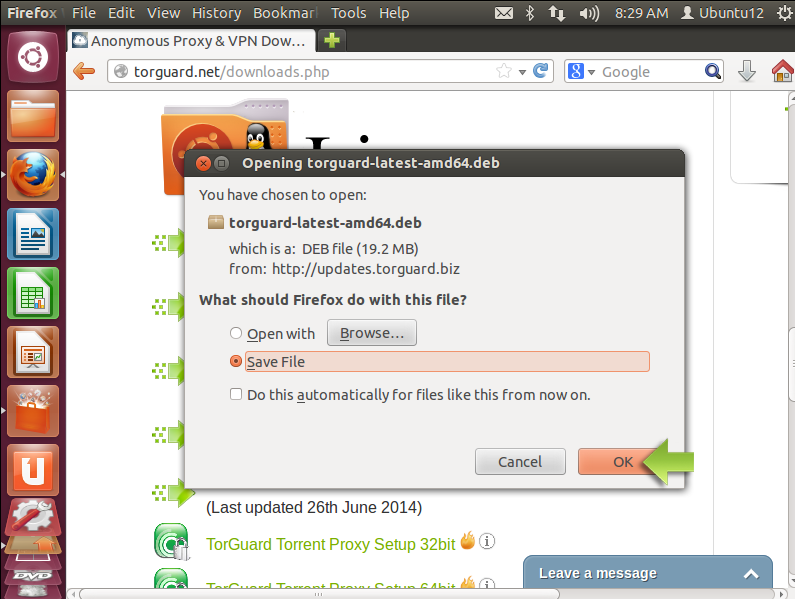
2.) Save the .deb file to your Downloads folder:
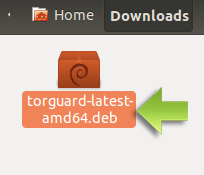
3.) Next, open your Downloads folder and open the package.
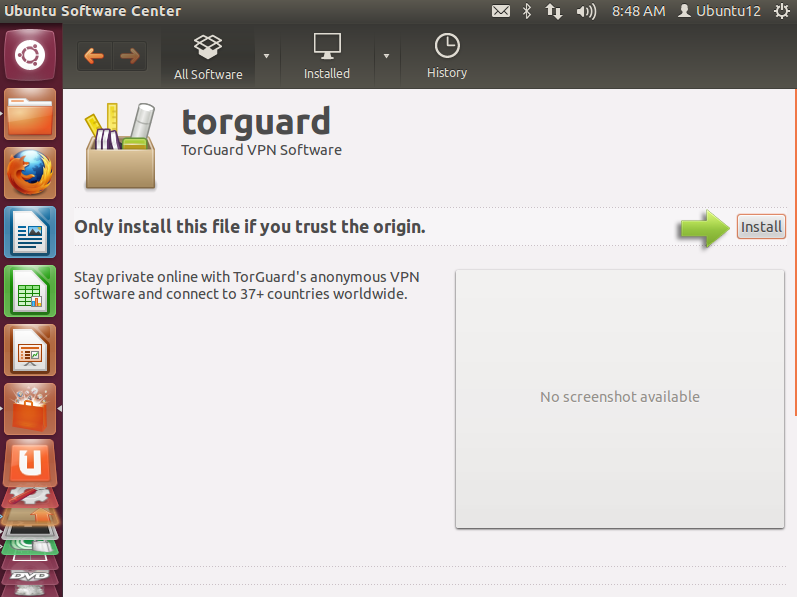
This should open the TorGuard screen in the ubuntu software center. Click the install button:
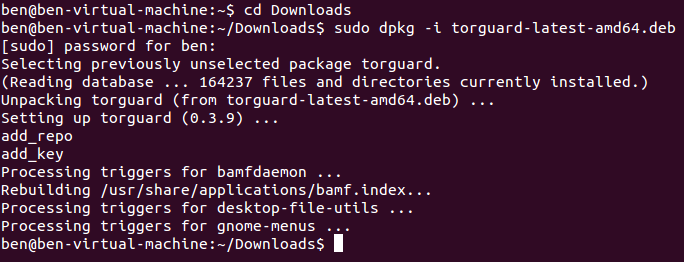
You can also install this from the terminal using the following commands: cd Downloads sudo dpkg -i torguard-latest-amd64.deb
4.) Click the dash home icon in the top left of the screen and search for TorGuard. Click the TorGuard VPN client option
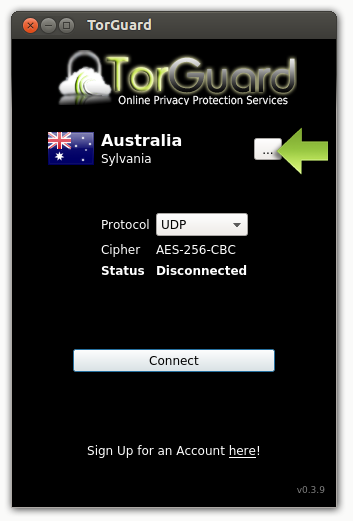
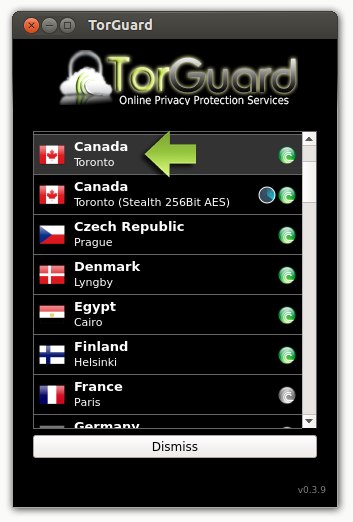
5.) This launches the TorGuard VPN Client. Click the server menu dropdown to select the VPN server you wish to connect to.
In this tutorial we will connect to the Canada UDP VPN server. Select the server and click connect:
6.) Next, you will be asked to enter your TorGuard VPN username and password. Enter this info and click “login”.
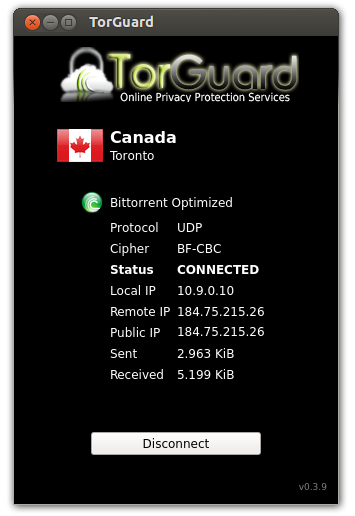
7.) You should now see a Connected status! This means your VPN is active and all traffic is tunneled through the secure server.
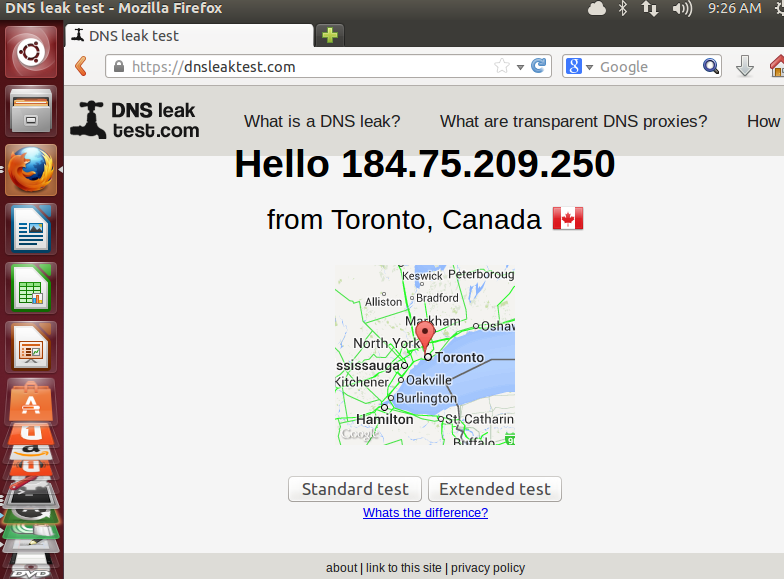
To verify the VPN connection open a web browser and navigate to dnsleaktest.com:
How to uninstall TorGuard VPNOpen a terminal window and enter: sudo dpkg -r torguard |