

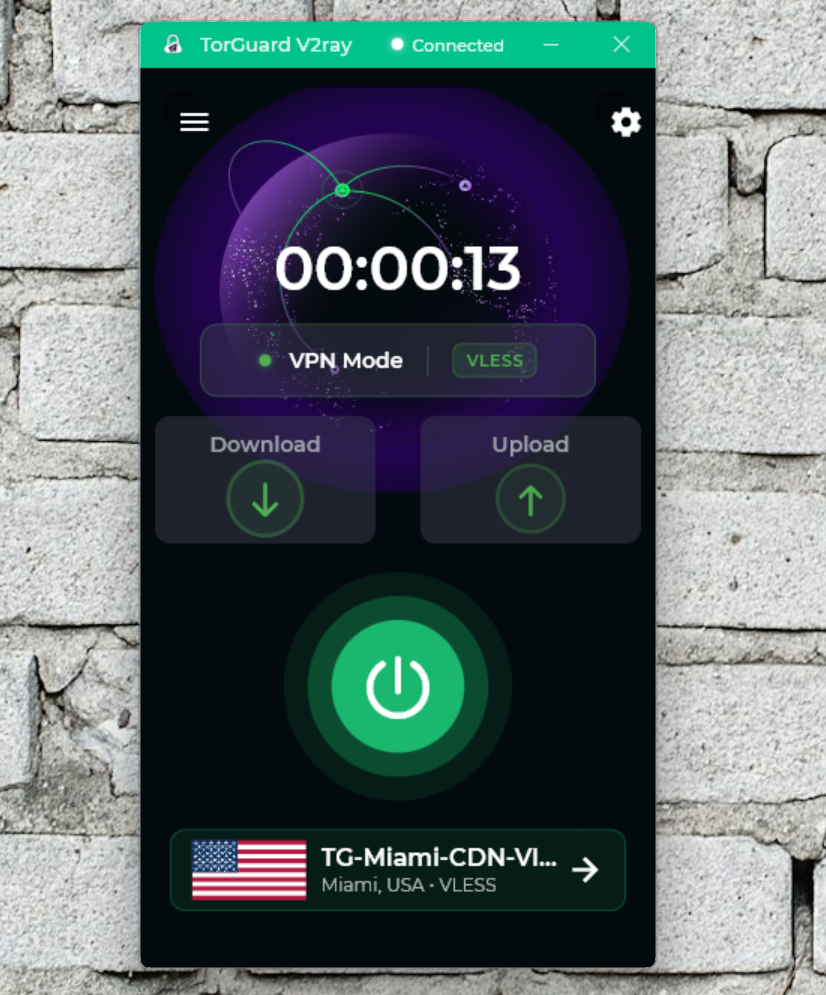
We’re excited to announce the release of the new TorGuard V2Ray Windows App (Beta)—a lightweight, portable client designed to make private, censorship-resistant browsing easier than ever on Windows. Built on the powerful Sing-box engine, this app supports VLESS, VMess, Trojan, and Shadowsocks protocols, all accessible with just a few clicks. Whether you're importing servers offline, pulling them directly from your account online, or configuring your own custom V2Ray server, the app is flexible enough to handle it all. Plus, it features both full TUN VPN mode and local proxy mode, giving you complete control over how your traffic is routed. If you're in a region where traditional VPN protocols like OpenVPN or WireGuard are frequently blocked, this new app is your streamlined path to the open internet—no more wrestling with third-party clients like V2RayN or V2RayA. In the next section, we’ll show you how to get started. First, you’ll need an active TorGuard Anonymous Proxy service.
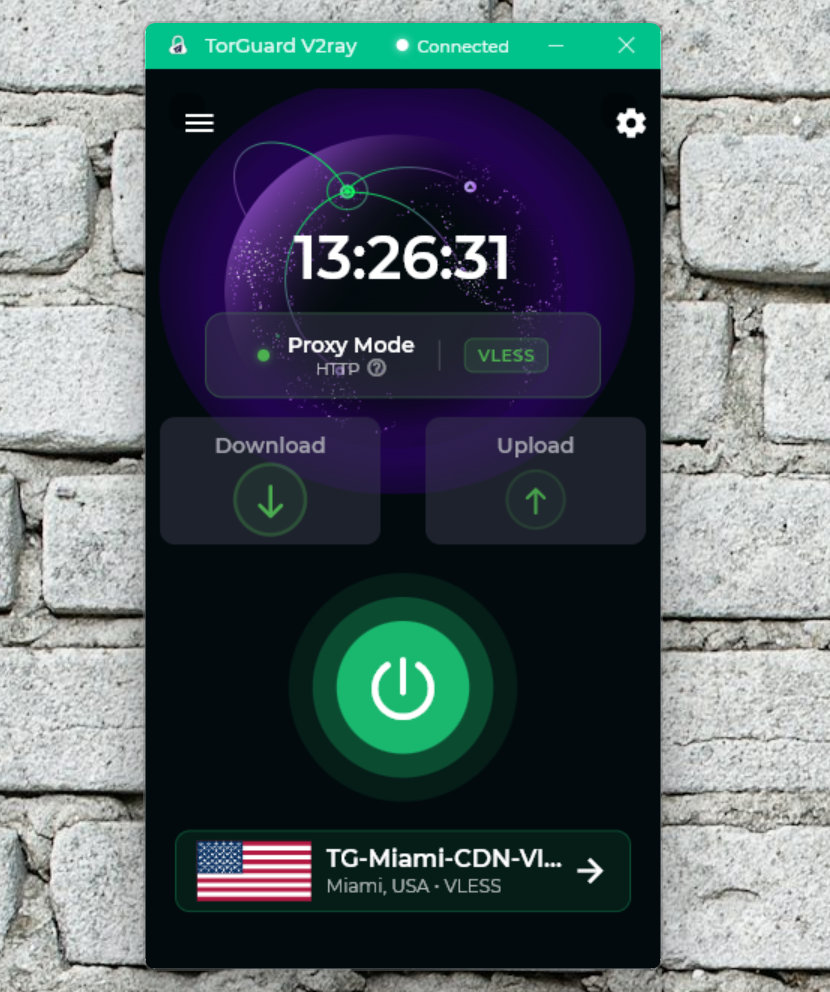
V2Ray Proxy Mode: Fast and Simple Proxy Tunneling
For users who want a fast and easy way to tunnel web traffic without configuring a full VPN, Proxy Mode is the perfect choice. When using the TorGuard V2Ray app in Proxy Mode, the client launches a local HTTP proxy on 127.0.0.1:8080 and a SOCKS proxy on 127.0.0.1:10808. This allows any local application that supports proxy settings to securely route its traffic through your selected V2Ray server.
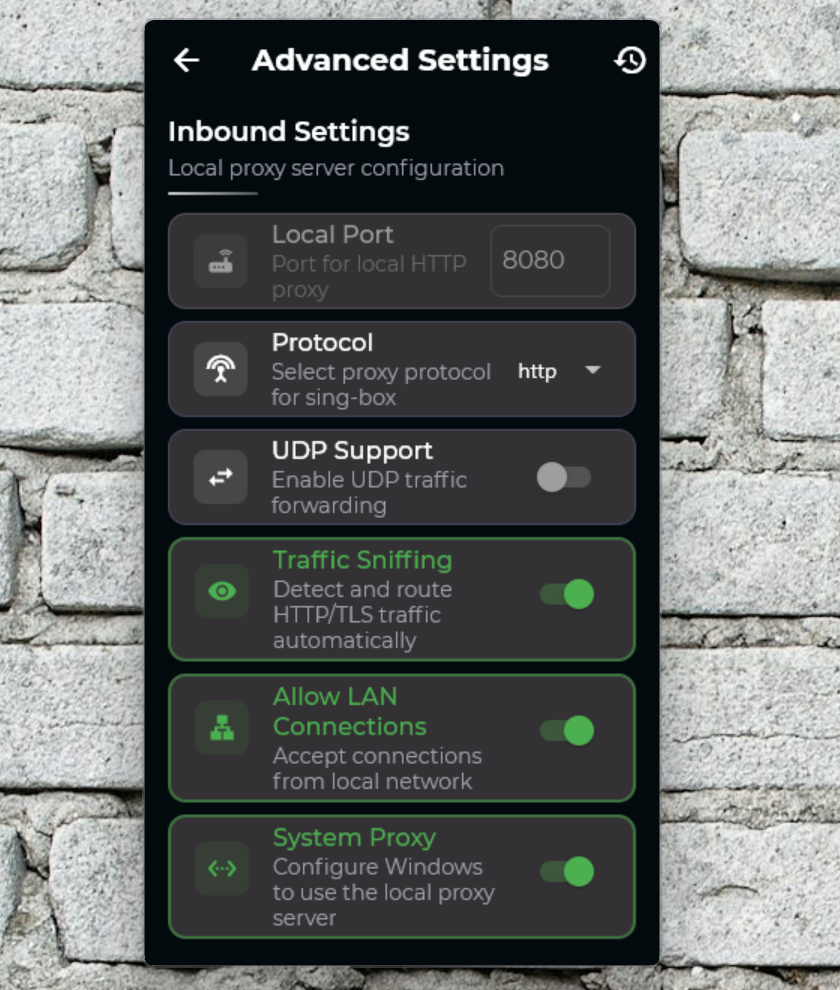
To get started, simply choose a server from the server selection dropdown, then go to Advanced Settings and ensure that TUN mode is disabled. If you want to apply the proxy system-wide—for web browsers and other Windows apps—enable the Full System Proxy toggle, which automatically sets the correct proxy values in Windows' network settings. Click Connect, and your system traffic will be routed through V2Ray immediately. You can also manually configure apps like Telegram, Firefox, or qBittorrent by pointing them to 127.0.0.1:10808 (SOCKS) or 127.0.0.1:8080 (HTTP). This is by far the easiest way to get connected without worrying about drivers or TUN routing.
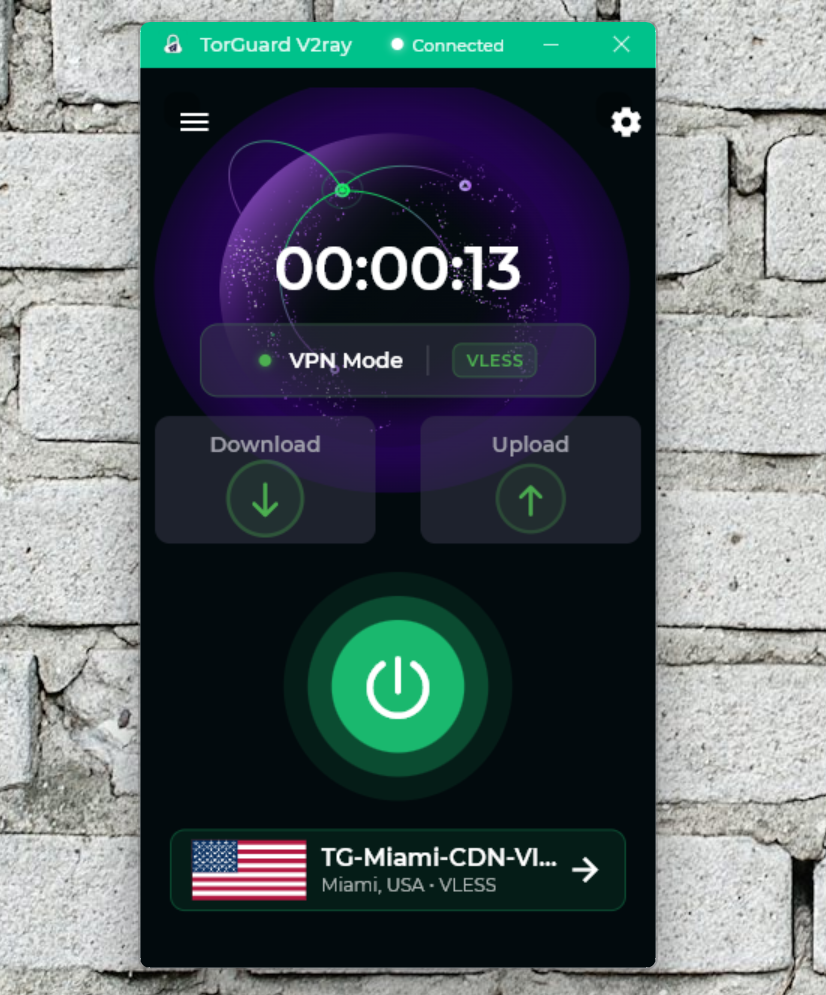
VPN Mode with TUN Support: Full-System Tunneling Made Easy
If you're looking to route all system traffic—including apps that don’t support proxies—through your V2Ray connection, VPN Mode with TUN support is the way to go. This mode functions like a traditional VPN by creating a virtual TUN adapter that captures all system traffic and forwards it through your selected V2Ray server. To enable this, open the TorGuard V2Ray app, go to Advanced Settings, and turn on the TUN mode toggle.
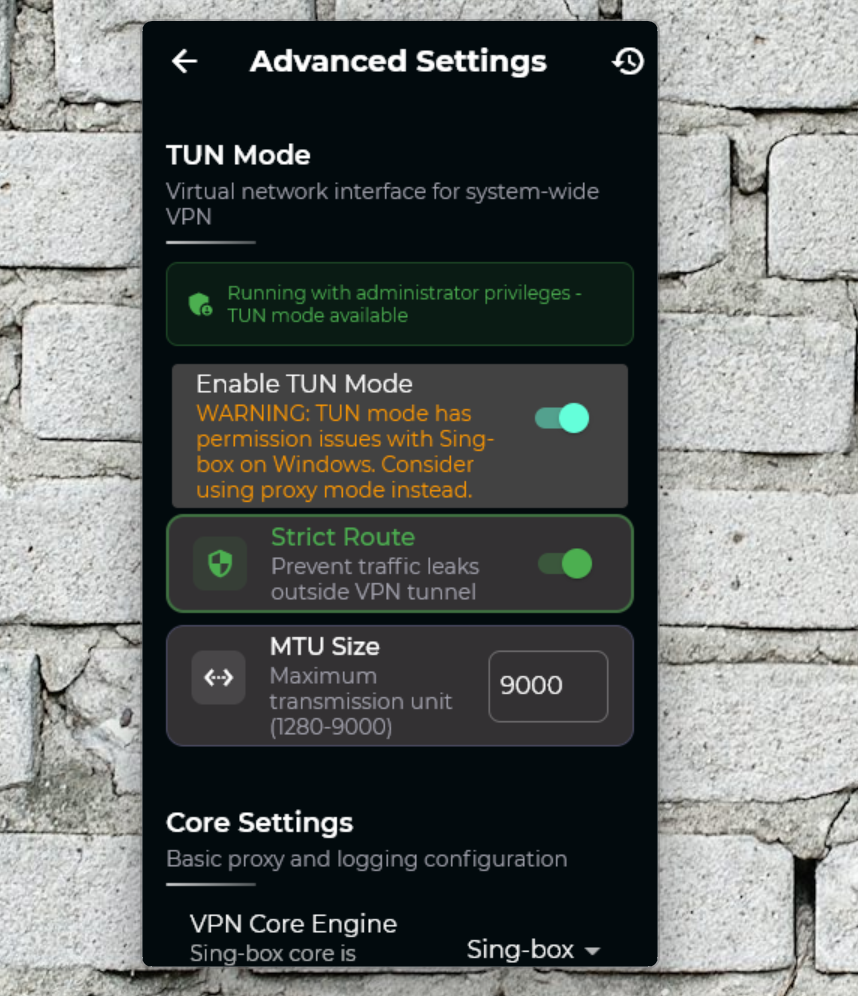
You'll also need to run the app with administrator privileges for TUN mode to initialize properly—just right-click the app and select "Run as administrator." Once enabled and connected, all traffic from your Windows system will route through the local TUN interface, giving you full coverage without needing to configure individual proxy settings. Be sure to disable any other VPN clients or V2Ray tools that might conflict with the TUN interface. If your goal is to securely tunnel everything—from your browser to your system services—through a V2Ray server, VPN mode offers the most complete solution.
TorGuard V2Ray Settings and Features: Server Import, Ping Testing, and Custom Server Support
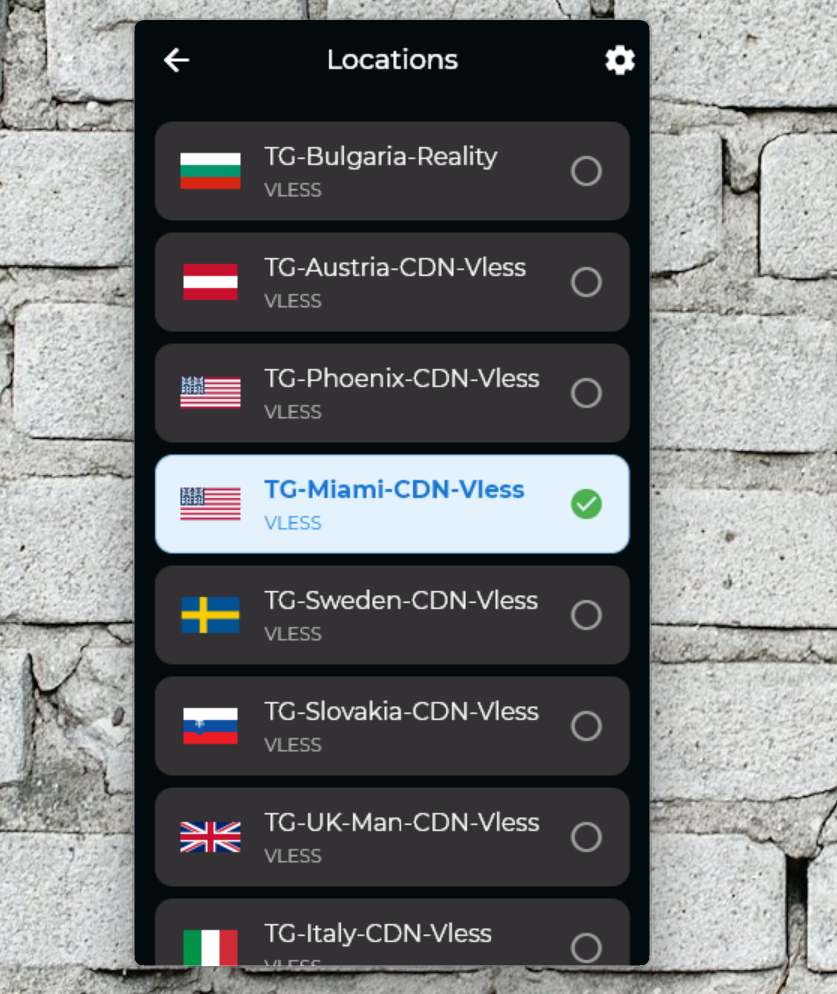
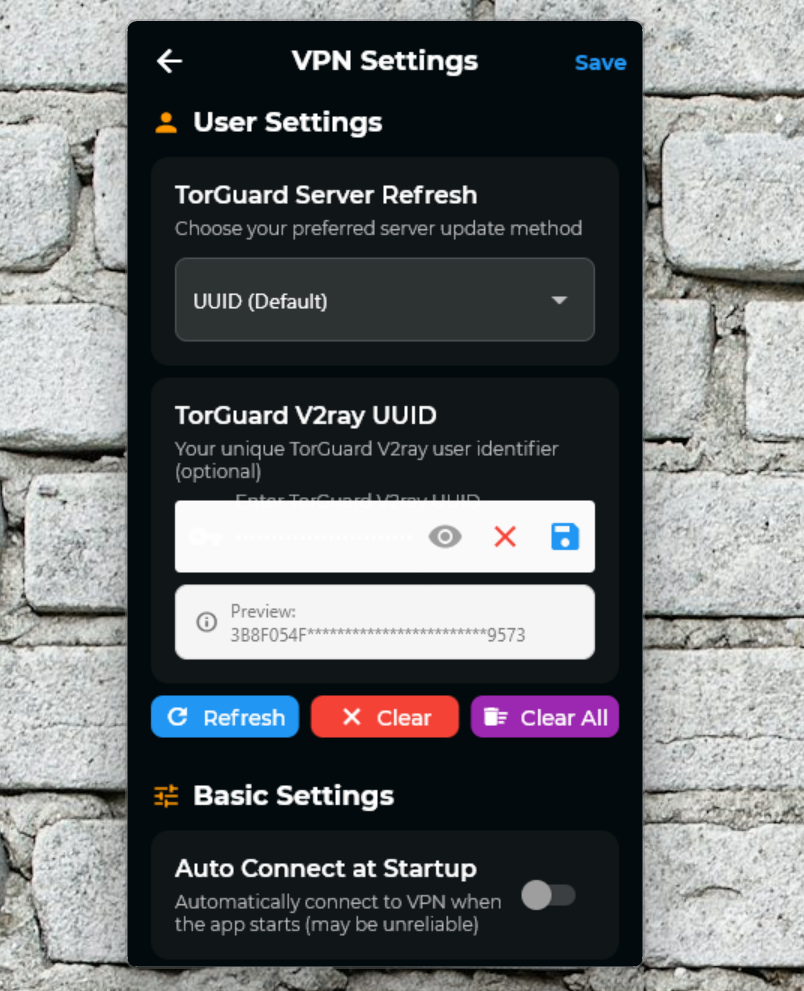
The TorGuard V2Ray Windows app is designed to make server management effortless, whether you're connecting automatically through your subscription or manually importing custom configurations. To get started, you’ll need an active TorGuard Anonymous Proxy account. On first launch, the app will prompt you to enter your UUID or Subscription URL, both of which can be found in your TorGuard Members Area. If you're located in a region where the TorGuard website may be blocked, we recommend using the UUID option, which allows the app to build your server list offline. Once connected, it will automatically retrieve the latest subscription URL in the background and refresh your server list.
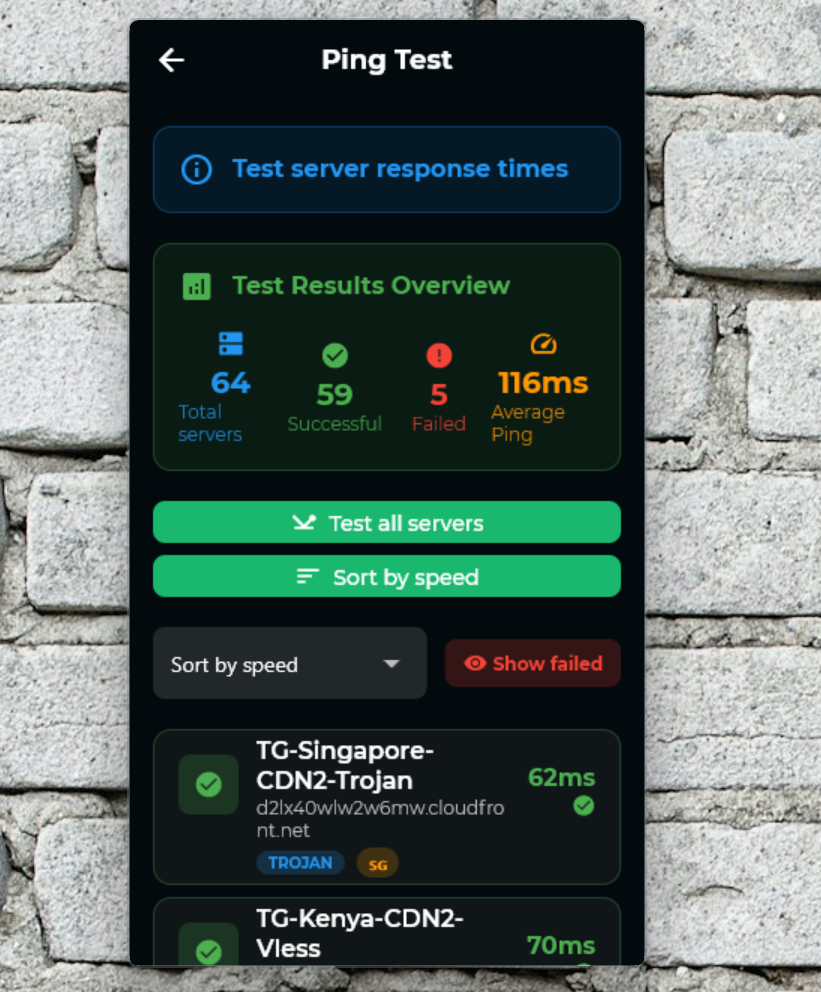
After your account is linked, you’ll see a full list of available VLESS, VMess, Trojan, and Shadowsocks servers. To help choose the fastest option, use the built-in Ping Test feature. This will quickly check latency for each server and, once complete, you can click Sort by Fastest to reorder the list with the best-performing servers at the top. You can also monitor your active connection in the Connection Monitor screen, which provides live server data and allows you to export a full Sing-box connection log—perfect for troubleshooting or sharing with TorGuard Support.
Additionally, TorGuard offers special V2Ray and Shadowsocks servers that are not included in the default subscription list. These servers are rotated periodically for users in heavily restricted regions. To add one, navigate to the Custom Server section of the app, click Import, and paste the Server URL exactly as shown in your Members Area. Once imported, it will appear alongside your standard server options, giving you even more flexibility to connect reliably—wherever you are.
The TorGuard V2Ray Windows app (Beta) offers a powerful yet user-friendly solution for bypassing censorship, securing your internet traffic, and accessing the open web—no matter where you are. With support for multiple proxy protocols, full VPN tunneling through TUN mode, and flexible server management features like ping testing and custom server imports, this portable client is built to perform in even the most restrictive environments. Whether you're an advanced user or just getting started with V2Ray, TorGuard's streamlined interface and backend power from Sing-box make it easier than ever to stay private, connected, and in control. Try it out today with your Anonymous Proxy account and experience secure browsing without the hassle.