

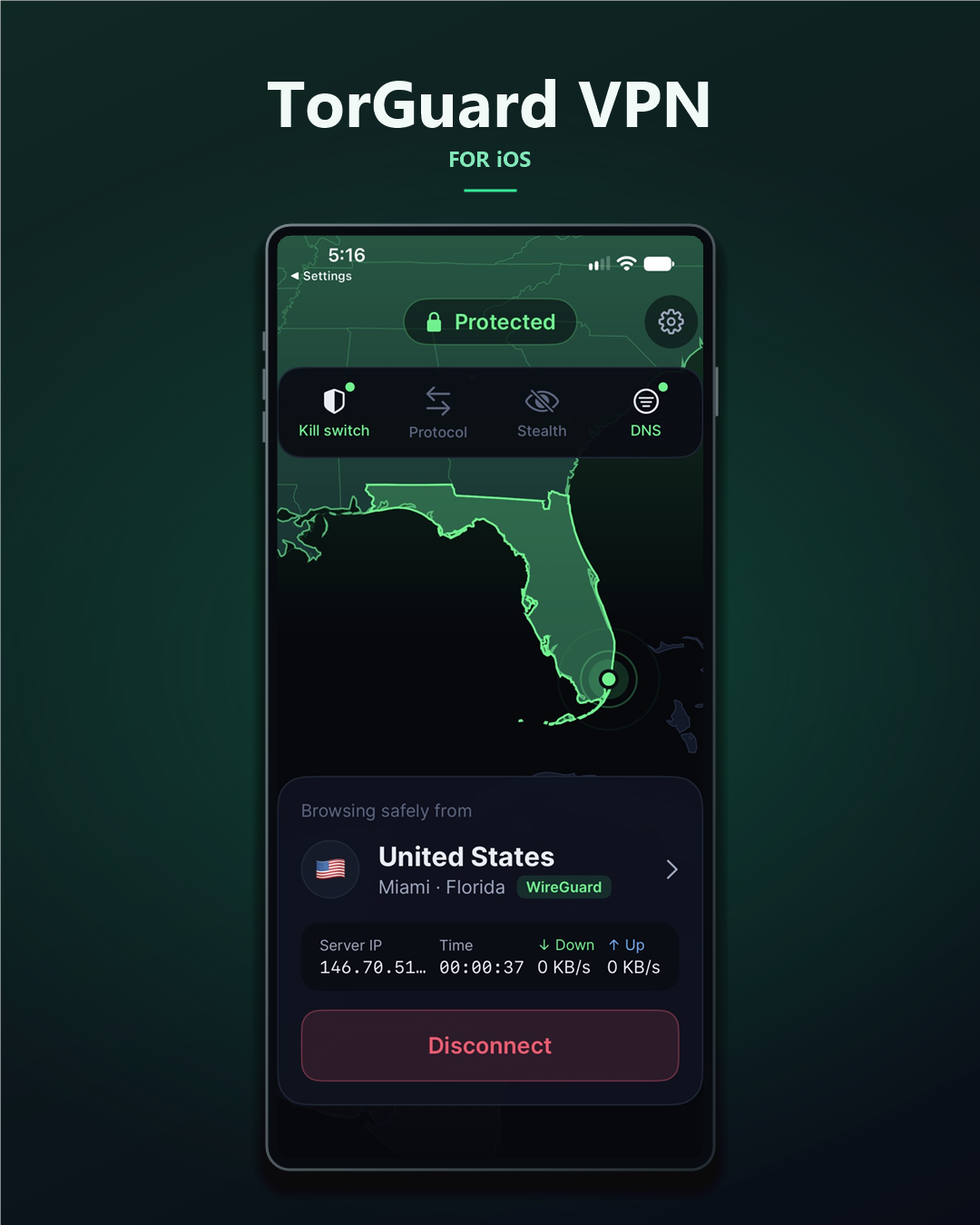
TorGuard VPN 3.0 is ready to try on iPhone and iPad through our public TestFlight beta. We rebuilt the app from the ground up using the same connection engine that powers TorGuard VPN 2.0 for Android. That brings our full set of OpenVPN stealth modes to iOS for the first time, along with OpenConnect, an interactive server map, and more control over how the VPN protects your traffic.
Join the TorGuard VPN 3.0 beta on TestFlight
Stealth VPN comes to iOS
Some networks can recognize and block standard OpenVPN traffic. TorGuard 3.0 gives you four ways to disguise that traffic, plus OpenConnect as a separate protocol for restrictive firewalls.
| Option | How it works | When to try it |
|---|---|---|
| Scramble (XOR) | Obfuscates OpenVPN packets on port 4443 so they’re harder to identify. | Networks with basic VPN blocking. |
| Stunnel (TLS) | Wraps OpenVPN in TLS so it resembles ordinary HTTPS traffic. | Networks that mainly allow web traffic. |
| WebSocket (wss) | Carries OpenVPN over secure WebSockets, as many web apps do. | Networks with web proxies or corporate filters. |
| Stealth Proxy | Sends traffic through a Shadowsocks proxy before it enters the VPN tunnel. | Restrictive networks where the other modes don’t connect. |
| OpenConnect | Uses an AnyConnect-compatible VPN connection over TLS on port 22. | Firewalls that block standard VPN ports. |
Turn on stealth from the quick controls on the home screen or under Settings → Stealth. If one mode can’t connect, try another.
Five protocols, with WireGuard as the default
WireGuard is our fastest option, and you can change its port if your network blocks the usual one. OpenVPN supports UDP and TCP on a choice of ports and powers all four stealth modes. OpenConnect is new to TorGuard on iOS. IKEv2 and Cisco IPSec are also available through the built-in iOS VPN client.
You can change locations or protocols while you’re connected. The app handles the switch for you.
What else is new in 3.0
- A better way to find a server. Explore locations on the interactive map, save your favorites, or sort by latency.
- More control over traffic protection. Choose Protect connection, Always on, or Off for the kill switch. The app also adds IPv6 leak blocking and an option to block access to the local network.
- Your choice of DNS. Use TorGuard DNS, turn on ad-blocking DNS, or enter your own DNS servers.
- Auto-connect that fits your routine. Connect automatically all the time or only on untrusted Wi‑Fi. You can keep a list of networks you trust and set the VPN to pause on mobile data.
- Dedicated IPs that sync from your account. Use them with WireGuard, OpenVPN, or OpenConnect.
- Easier troubleshooting. Send a diagnostic log to support from Settings with a tap.
The home screen widget and Siri Shortcuts for connecting and disconnecting are back, rebuilt for the new app.
How to join the public beta
- Install Apple’s free TestFlight app on your iPhone or iPad.
- Open the TorGuard VPN 3.0 TestFlight invitation on that device and tap Accept, then Install.
- Sign in with your existing TorGuard account. If you already have the TorGuard app installed, the beta installs over it. You’ll stay signed in, and your protocol and ad-blocking settings will carry over.
The beta is open to existing TorGuard customers. Sign-up and in-app purchases are disabled in the beta, but you can still create an account on our website. Visit TorGuard
If you run into a problem, take a screenshot in the app and tap Share Beta Feedback, or send us a diagnostic log from Settings.
Coming soon to Apple TV
We’re also testing a new TorGuard app for Apple TV built on the same connection engine. It’s in internal testing now, and we’ll share the public TestFlight link here when it opens.
Thanks for trying the beta and telling us how it works on the networks you use every day.