


As we continually seek ways to upgrade our service and enhance the experiences of our users, TorGuard is thrilled to announce a massive sale on port forward services. We understand the importance of secure and convenient access to local resources, particularly for those who require remote access to devices and software. With TorGuard's port forwarding, you can unlock new functions with your VPN, enabling a smooth and efficient user experience.
To take advantage of this limited-time offer, use the promo code "PORTFW" to save 60% on both Anonymous VPN plans and our brand new Private VPN Cloud service! Don't miss this exclusive opportunity as the sale is only valid for the next 10 days.
For the next 10 days only, TorGuard is offering a whopping 60% off our Anonymous VPN and Private Cloud VPN plan. This includes five FREE port fw IP's and 20 available ports on the standard Anonymous VPN plan. More advanced users who require comprehensive control over internal and external port forwarding will also enjoy this discount on our Private VPN Cloud Wireguard services.
Our Anonymous VPN plan is ideal for users who need to forward a single application port for outside access, while power users will appreciate the extensive firewall and port forward options included with Private VPN Cloud. You can essentially host anything you would on a public webserver, securely behind the Wireguard VPN tunnel with Private VPN Cloud.
Understanding Port Forwarding
Port forwarding with a VPN sets up your VPN server to move data more directly. It involves configuring your VPN connection to send data to a specific external port on your VPN, bypassing certain built-in VPN firewall processes. This can potentially increase your speeds, offering benefits like remote access or making a public webserver available to the outside world.
However, port forwarding comes with inherent risks. Opening a port to the outside internet can pose serious security threats, which is why TorGuard recommends using our built-in firewall features to limit outside access.
Benefits of Port Forwarding with TorGuard's Anonymous VPN
Setting up port forwarding with TorGuard's Anonymous VPN can enable you to:
- Monitor a security camera or baby monitor remotely;
- Access your home server remotely;
- Use remote desktop software to access your home computer;
- Allow users to connect to your public web server;
- Connect to an IoT device on your home network;
- Form a direct connection to a gaming server;
- Maintain uninterrupted and direct access to a VoIP call server.
Setting Up Secure Port Forwarding with Standard Anonymous VPN
At TorGuard, we have designed our member's area to simplify the process of enabling various port forward rules. However, we must emphasize the importance of securing the login to your software and restricting access to the port only to specific IPs. You can manage your ports within the client area under the Services menu. Here's how to setup a port forward on TorGuard's standard VPN plan:
TorGuard's member's area allows you to quickly enable various port forward rules and apply whitelisted firewall settings to your port forward requests. However, we cannot stress enough that when exposing a port to the Internet make sure you secure the login to your software, and allow only specific IPs to access this port remotely over the VPN with TorGuard's port fw firewall feature. Additionally, when testing to see if the port is open, always make sure the software that’s using this port is running - its always best to test from outside your network. Depending on the device or router you are setting up the VPN tunnel port fw request on you may need to open this port on your local firewall to setup the port fw. Make sure that when testing this port, TCP is open. UDP ports will not respond in the same way. Lastly, we allow all ports above 2048 - we do not allow ports below, as some ports above 2048 may be be reserved.
How to Setup Port Forwarding on TorGuard's Standard Shared VPN Service:
Leveraging TorGuard's exceptional 60% off Port Forwarding promotion, users now have the opportunity to secure six shared VPN IP addresses and have a pool of 20 available ports to select from. To get the most out of your TorGuard Anonymous VPN service and start forwarding ports effectively, follow these steps:
STEP 1:
If you wish to open a port on a static shared IP, normally you would grab the IP from the TorGuard software while connected to the VPN, on the desktop app you will see this info under the "connection details" drop down on the top left and look for the "Remote IP" field. You can PIN this IP in the TorGuard VPN app so it will appear on the connection list and you can eaily re-connect to the same server. Or, you can generate an OpenVPN or Wireguard config using our config generator and apply it to your VPN Router or dedicated device running the VPN.
STEP 2:
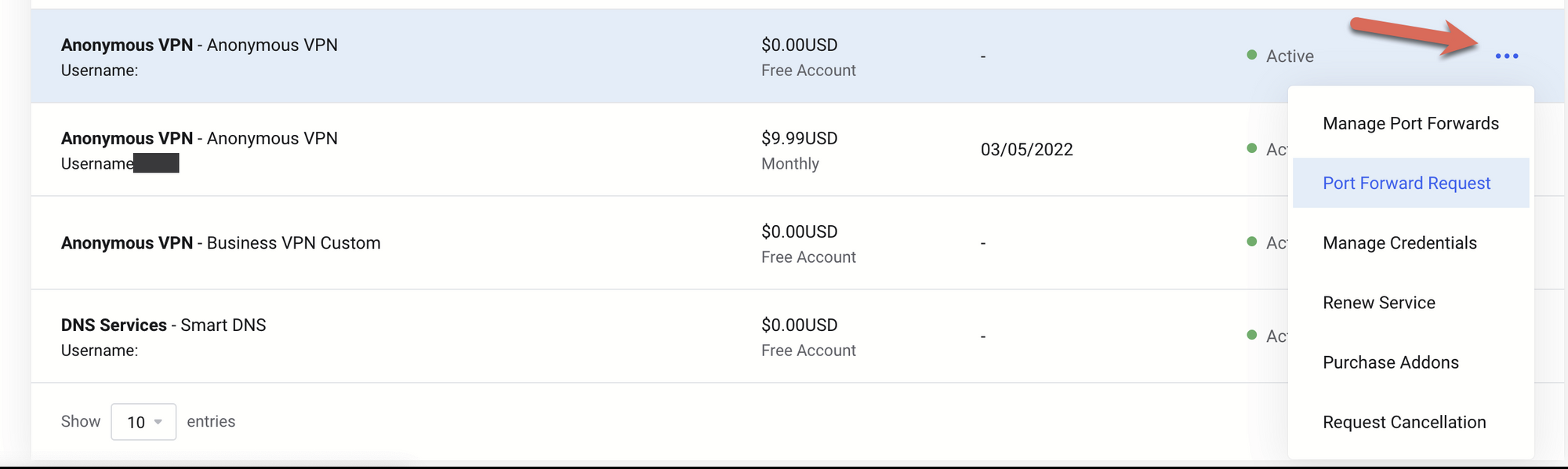
Now you have the VPN IP, head then over to the client area and navigate to Services then click the 3 little dots to the right of your service to open the menu and select "Port Forward Request".
STEP 3:
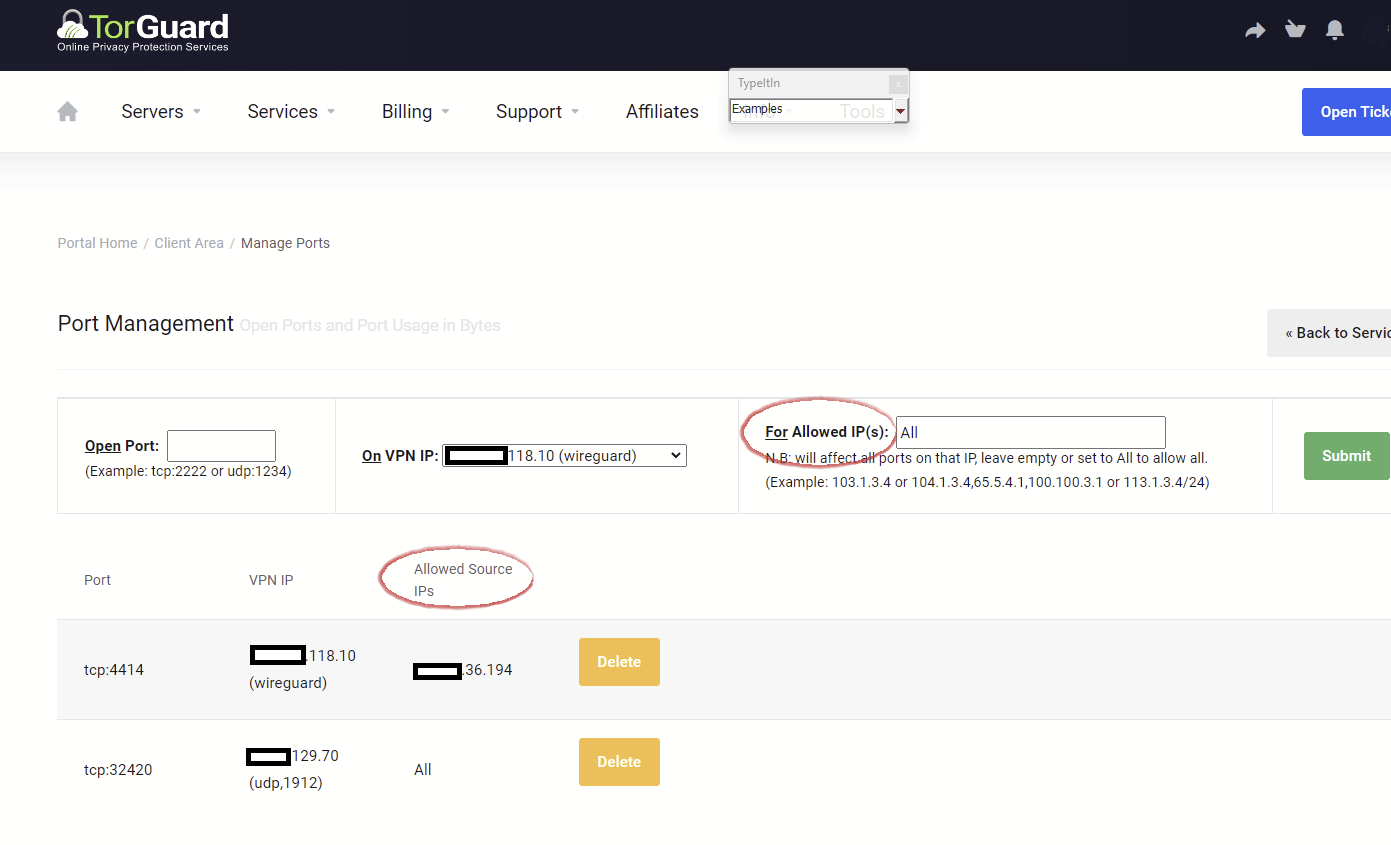
Under "On the VPN IP" select the Wireguard server from the dropdown that you wish to setup the port forward on. Then, under "Open Port" enter "tcp:2060" or "udp:2080" to enable this ports to be forwarded on the server. Lastly, and perhaps most importantly, under "For Allowed IP's" enter a list of IP addresses seperated by commas that will be "Whitelisted" on your port forward request. This means that ONLY the IP addresses listed here will be allowed to access the open port on the VPN tunnel. If you leave this blank, the open port will be accessible to the outside world for anyone who happens to stumple upon it. While this may be needed in some use cases we do not recommend this approach unless you know what you are doing and can take further measures at the software level to restrict logins either by blocking IPs, using fail2ban, or implementing a secure authentication method.
Once you have submit your VPN port forward IP requst you can manage those ports on those servers within the client area under the Services menu. Click the 3 little dots to the right of your service to open the menu and choose "Manage Port Forwards".
STEP 4:
Loading those IPs into the TorGuard desktop software is extremely easy. If this is your first time logging into the torguard desktop software all you have to do is login, this will pull all port forward IPs and Dedicated IPs assigned to your account straight to the top of your server selection list and even better they will be locked using the correct settings to prevent user error. If you are already logged into the app, simply logout and re-login to fetch the new port forward or Dedicated IP.
How to Setup Secure Port forwarding with TorGuard's Private VPN Cloud
TorGuard's new dedicated WireGuard service, Private VPN Cloud, provides you with unrivaled control over your port forwarding options. Here is a step-by-step guide to setting up secure port forwarding with Private VPN Cloud.
Step 1: Generate a WireGuard VPN Config
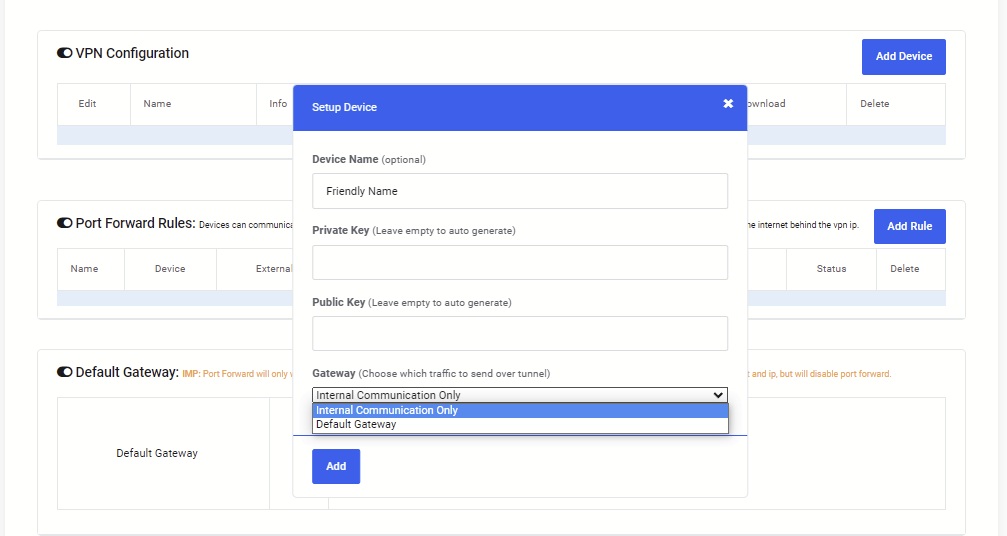
1.1. Start by generating a WireGuard VPN configuration for the device that you will be setting up port forwarding for. Remember, port forwarding only works with the Private VPN Cloud if you're using the server IP as the remote gateway.
1.2. For instance, if you want to make your WireGuard server accessible to the public, choose "default gateway". This allows any device or VPN router running the WireGuard profile to act as a virtual private server using the WireGuard VPN's public IP.
Step 2: Add a Firewall Rule for Port Forwarding
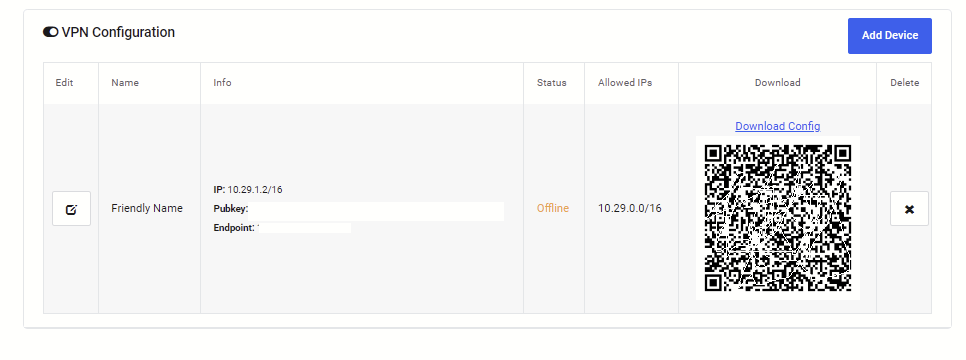
2.1. Add a specific firewall rule for this WireGuard peer that will forward both internal and external ports. This is particularly useful if you don't want to manually forward a local port to your external port, as this will be handled by your dedicated WireGuard server.
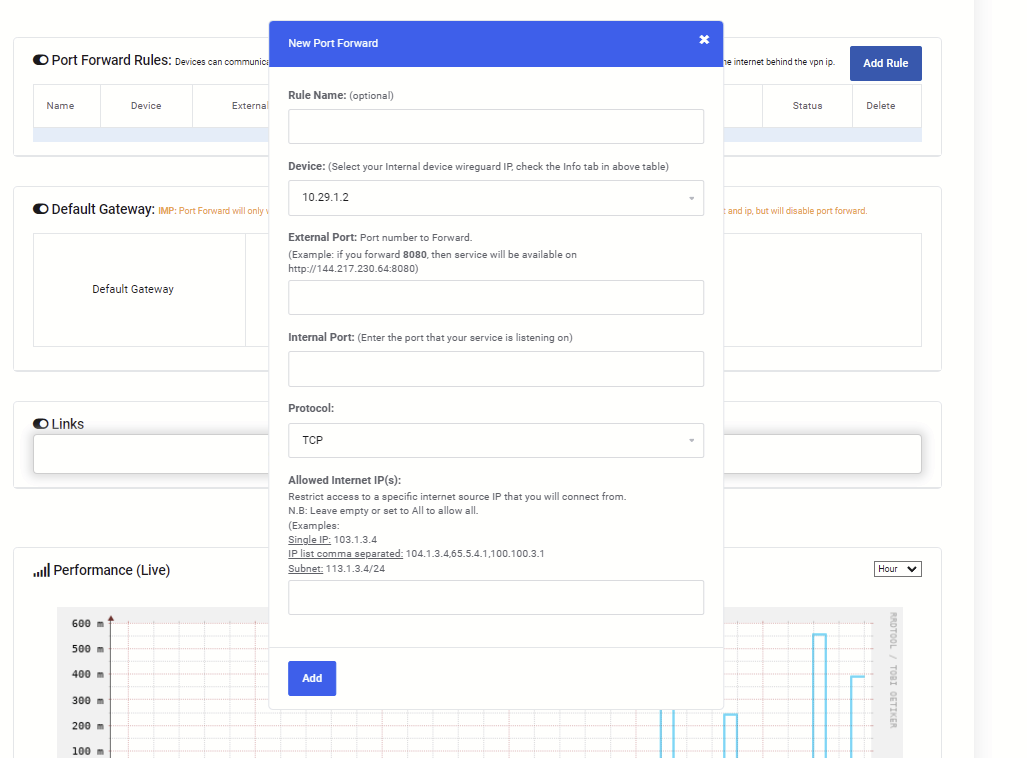
Here's how you can add a Port forward rule:
- Rule Name: Choose a friendly name for your rule for easy identification. For example, 'MyWebsite' or 'MyNextcloud'.
- Device: Select the device WireGuard IP that you just created. You can find this by checking the IP in the information table under the VPN configuration section.
- External Port: This is the port to open on the VPN IP, which you can then access from anywhere on the internet using your VPN server IP. If you're forwarding ports 80/443, simply pointing your domain name to the WireGuard server IP will enable web traffic to reach these ports.
- Internal Port: This is the port that your app/service uses. It may differ from the external ports. If you're running a single app that can be accessed locally on port 3000, then forward this local port. If you're running a local web server using Nginx, forward internal TCP ports 80, 443, or 8080 (which would forward to external ports TCP 80 and 443).
- Protocol: Choose your port protocol - either UDP or TCP.
- Allowed Internet IP(s): Leave this blank or enter 'All' if you want to allow unrestricted access from the internet. If you want to restrict internet access to a specific source public IP, enter it here. To secure access from the outside, we highly suggest restricting port forwards to your static or dedicated VPN IP or even your home IP address, thus limiting who can access this server from the outside.
If you are accessing your Private VPN Cloud server through a public domain name, don't forget to point the domain's A record to your Wireguard public IP address.
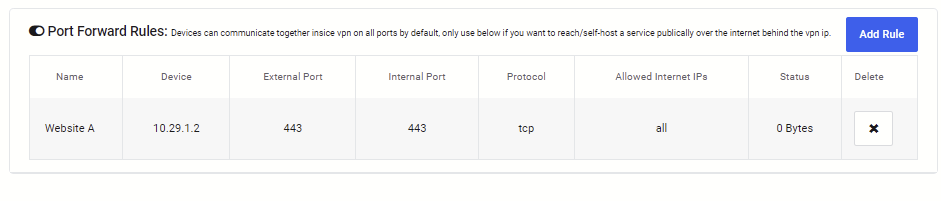
Congratulations! You've now set up powerful internal/external port forwarding rules with TorGuard's dedicated WireGuard service, Private VPN Cloud. This is perfect for hosting public websites or accessing specific devices through your dedicated WireGuard server.
Save 60% with TorGuard's Limited-Time Port Forward Offer
In conclusion, we've explored the process of setting up powerful port forwarding rules using TorGuard's standard anonymous VPN plan and the dedicated WireGuard service, Private VPN Cloud. As a reminder, for the next 10 days, you have a fantastic opportunity to save 60% on ALL Private VPN Cloud plans, which also includes the VPN router bundle. Our WireGuard service is fully incorporated with PrivateCloud OpenWRT on x86 and arrives pre-packaged with over 100 docker templates. All you need to do to seize this remarkable discount is apply the coupon code "PORTFW" at checkout to enjoy 60% savings on both Anonymous VPN plans and our newly launched Private VPN Cloud service. Don't hesitate, as this exceptional offer will only last for the next 10 days.