This tutorial will guide you through setting up TorGuard VPN Service on a Tomato Router.
To begin, we assume your router has already been flashed with the latest version of tomato firmware. To Purchase a pre-flashed router already setup with your VPN account please visit the TorGuard store.
Step 1.)
Access your tomato router at the default IP: http://192.168.1.1/
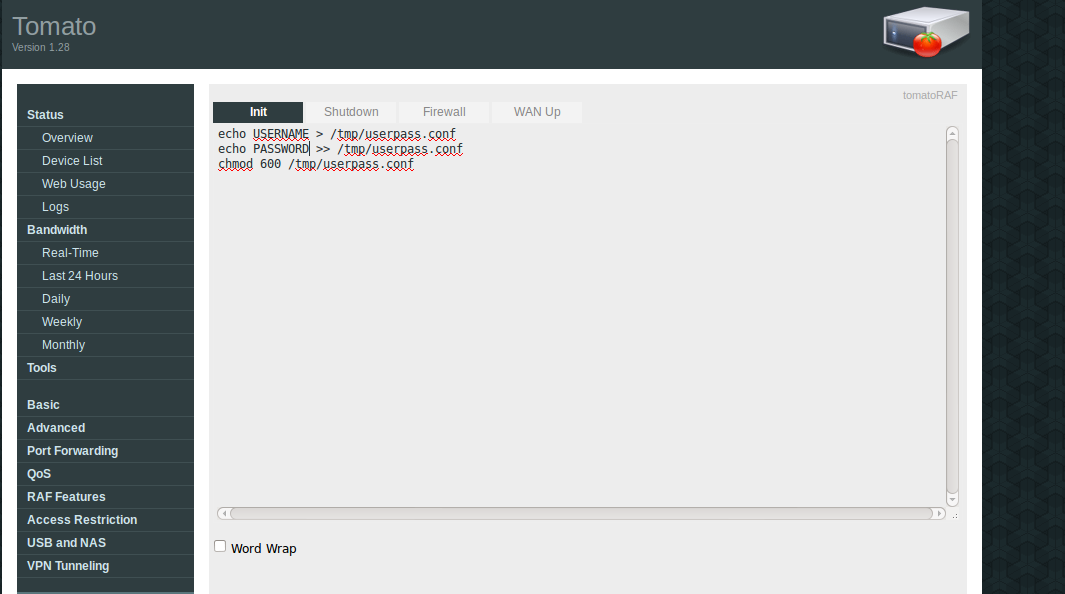
Next, proceed to Administration > Scripts and enter the following command:
echo USERNAME > /tmp/userpass.conf
echo PASSWORD >> /tmp/userpass.conf
chmod 600 /tmp/userpass.conf
Replace USERNAME with your TorGuard VPN username and PASSWORD with your TorGuard VPN password.
Press “Save”
Step 2.)
Now we need to download the latest TorGuard OpenVPN config bundle to obtain the IP address, Port, and Certificate info.
Open the .ovpn file of the server you wish to connect to and note the information highlighted below:
Next, proceed to VPN Tunneling > Client > Basic
Enter the following information:
Start with WAN: Check
Interface Type: TUN
Protocol: Choose TCP or UDP (Depending on ovpn, for this example UDP)
Server IP address/Port: Enter the IP address and port from the .ovpn example above.
Port: For UDP enter 443 and for TCP 80
Firewall: Automatic
Authentication mode: TLS
Extra HMAC Authorisation: Disabled
Create NAT on tunnel: check
PRESS SAVE

Step 3.)
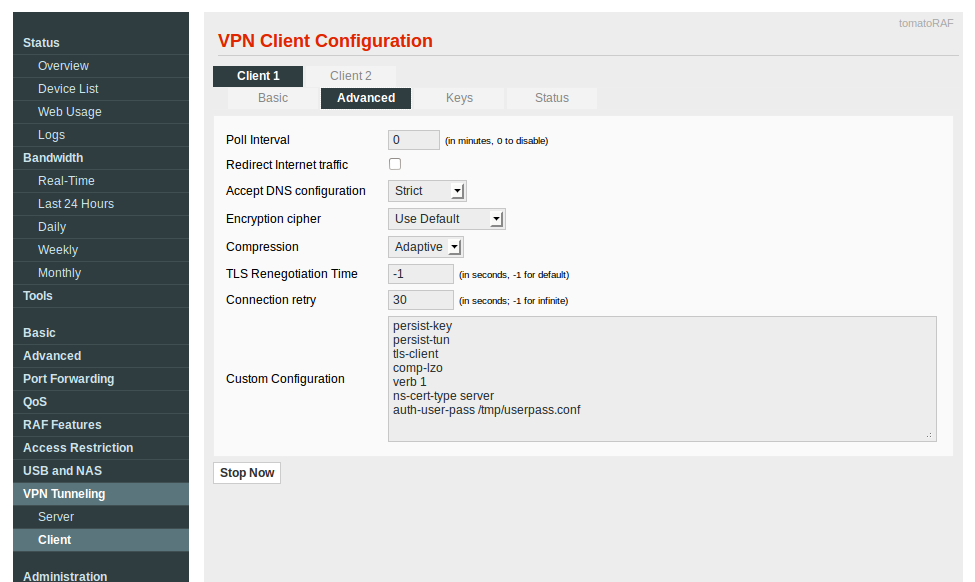
Next, proceed to VPN Tunneling > Client > Advanced
Use the following settings:
Poll interval: 0
Redirect traffic: Uncheck
Accept DNS configuration: Strict
Encryption cipher: Use Default
Compression: Adaptive
TSL Regeneration Time: -1
Connection retry: 30 (or you may set -1 for infinite)
In Custom Configuration please paste the following:
persist-key
persist-tun
tls-client
comp-lzo
verb 1
ns-cert-type server
auth-user-pass /tmp/userpass.conf
PRESS SAVE
Step 4.)
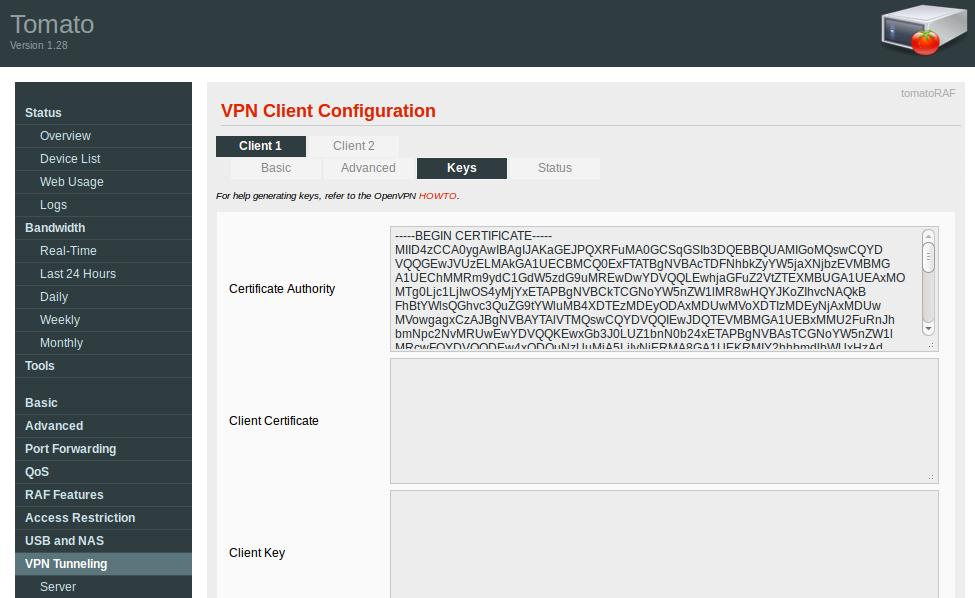
Next, please proceed to VPN Tunneling > Client > Keys
In Certificate Authority, paste the contents of the .crt file from the OpenVPN config file you have chosen to connect to in step 2.
PRESS SAVE
Step 5.)
Congrats, your Tomato router is configured for OpenVPN with TorGuard.
You can now proceed to VPN Tunneling > Client > Status
Simply press the “Start Now” button to connect.
To Disconnect, press the “Stop Now” button as seen below: