
Using a VPN is an excellent way to protect your online activities, and TorGuard's WireGuard service provides a fast and secure solution. But did you know you can enhance your privacy by running TorGuard WireGuard in a containerized environment using Docker? Enter Gluetun, a versatile solution that makes this process seamless. In this article, we’ll explore how to set up TorGuard’s WireGuard service using Gluetun in Docker, highlighting the simplicity and security of this approach.
What is Gluetun?
Gluetun is a lightweight and secure VPN client that runs inside a Docker container, supporting multiple VPN providers, including TorGuard. It’s designed to be easy to use and configure, offering robust privacy features without the overhead of traditional VPN setups. Gluetun can route other Docker containers' internet traffic through the Gluetun VPN tunnel, encrypting your data and masking your IP address, ensuring your online activities remain private and secure.
How Gluetun Works
Gluetun creates a secure VPN tunnel using protocols like WireGuard and OpenVPN. When you run Gluetun in a Docker container, it acts as a gateway for your internet traffic, routing other containers through the configured VPN service. This setup ensures that all traffic from your applications and services within the Docker network is protected by the VPN. Today, we will walk you through the process of setting up TorGuard's WireGuard VPN using Gluetun and Docker Compose.
Why Use Gluetun and WireGuard in Docker?
- Enhanced Security: Running your VPN in a Docker container isolates the VPN client from your host system, adding an extra layer of security. This containment reduces the risk of leaks and vulnerabilities affecting your entire system.
- Simplicity and Portability: Docker containers are portable and easy to deploy. With Gluetun, you can quickly set up and tear down your VPN environment, making it ideal for testing and development purposes.
- Automated and Consistent: Docker ensures that your VPN setup is consistent across different environments. You can automate the deployment of your VPN configuration, ensuring that it’s always set up correctly, every time.
- Performance: WireGuard is known for its high performance and low overhead, making it a perfect choice for a containerized VPN solution. Running WireGuard through Gluetun ensures that you get the best possible speeds and reliability.
In the next sections, we’ll dive into the step-by-step process of setting up TorGuard’s WireGuard service using Gluetun in Docker and show you how to connect other Docker containers running Qbittorrent and Webtop so all your traffic is securely routed through the VPN.
Step 1: Install Docker
We're using Ubuntu Desktop to run Docker in this tutorial, but Windows users can easily install Docker Desktop and run the same commands in Windows Powershell. If you're using Windows, you can download Docker from the official site. For Ubuntu users, open a terminal and run the following commands to use the Docker install script:
curl -fsSL https://get.docker.com -o get-docker.sh
sudo sh get-docker.sh
Next, install Docker Compose:
sudo apt install docker-compose
Step 2: Add Your WireGuard Config
First, create a directory for your Docker Compose and WireGuard config files:
mkdir gluetun
cd gluetun
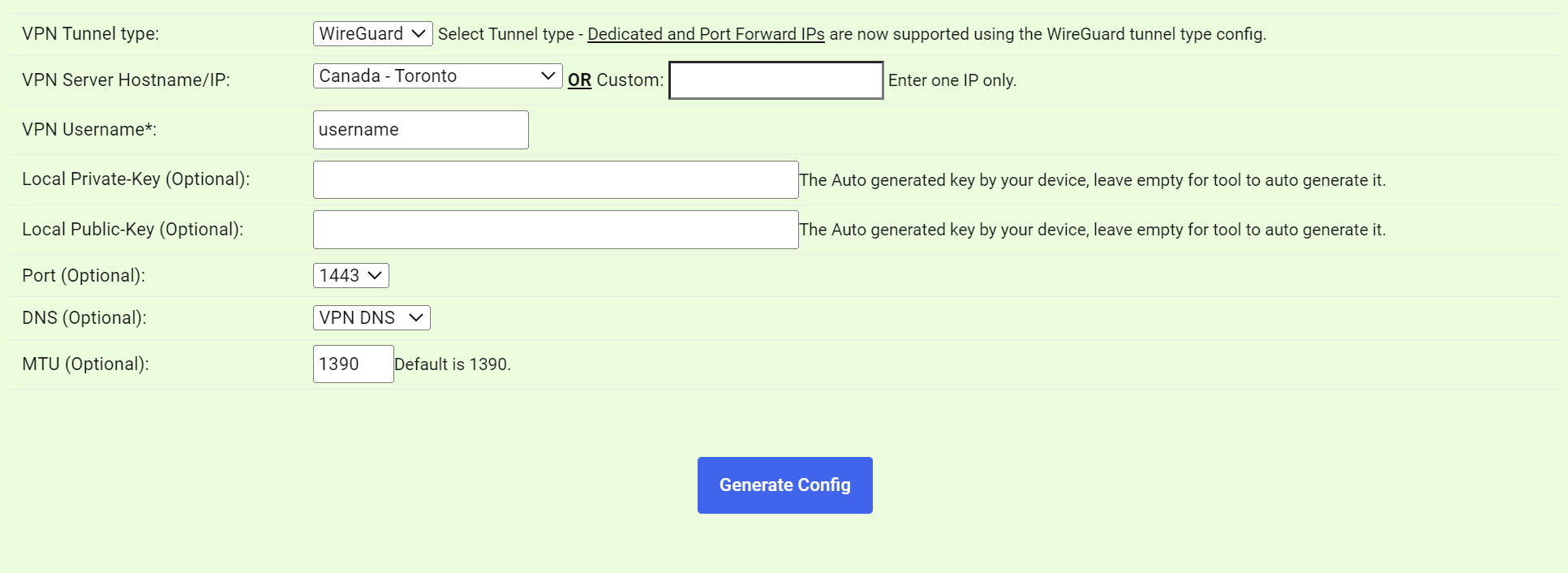
Head over to the TorGuard members area and use the WireGuard config generator to download the latest WireGuard config file for the server you wish to connect to. In the gluetun folder, create a new file called wg0.conf:
nano wg0.conf
Paste the entire contents of the TorGuard config file you generated, then save the file.
Step 3: Add Your Docker Compose File
We prefer to use Docker Compose for this step. Create a new file called docker-compose.yml:
nano docker-compose.yml
Then paste the following contents into the file:
version: "3"

services:
  gluetun:
    image: qmcgaw/gluetun
    container_name: gluetun
    cap_add:
      - NET_ADMIN
    environment:
      - VPN_SERVICE_PROVIDER=custom
      - VPN_TYPE=wireguard
    ports:
      - "8080:8080/tcp" # Qbittorrent Web UI
    volumes:
      - /etc/localtime:/etc/localtime:ro
      - ./wg0.conf:/gluetun/wireguard/wg0.conf
    restart: unless-stopped

  qbittorrent:
    image: linuxserver/qbittorrent:latest
    container_name: qbittorrent
    environment:
      - PUID=1000
      - PGID=1000
      - TZ=Etc/UTC
      - WEBUI_PORT=8080
      - TORRENTING_PORT=6881
    volumes:
      - ./config:/config
      - ./downloads:/downloads
    network_mode: "service:gluetun"
    depends_on:
      - gluetun
    restart: unless-stopped
You can add additional containers to the configuration and include their local web ports under the Gluetun services. For example, in this configuration, we added Qbittorrent and Webtop:
version: "3"

services:
  gluetun:
    image: qmcgaw/gluetun
    container_name: gluetun
    cap_add:
      - NET_ADMIN
    environment:
      - VPN_SERVICE_PROVIDER=custom
      - VPN_TYPE=wireguard
    ports:
      - "8080:8080/tcp" # Qbittorrent Web UI
      - "3000:3000/tcp" # Webtop
      - "3001:3001/tcp" # Webtop
    volumes:
      - /etc/localtime:/etc/localtime:ro
      - ./wg0.conf:/gluetun/wireguard/wg0.conf
    restart: unless-stopped

  qbittorrent:
    image: linuxserver/qbittorrent:latest
    container_name: qbittorrent
    environment:
      - PUID=1000
      - PGID=1000
      - TZ=Etc/UTC
      - WEBUI_PORT=8080
    volumes:
      - ./config:/config
      - ./downloads:/downloads
    network_mode: "service:gluetun"
    depends_on:
      - gluetun
    restart: unless-stopped

  webtop:
    image: lscr.io/linuxserver/webtop:latest
    container_name: webtop
    security_opt:
      - seccomp:unconfined # optional
    environment:
      - PUID=1000
      - PGID=1000
      - TZ=Etc/UTC
      - SUBFOLDER=/ # optional
      - TITLE=Webtop # optional
    volumes:
      - /path/to/data:/config
      - /var/run/docker.sock:/var/run/docker.sock # optional
    network_mode: "service:gluetun"
    devices:
      - /dev/dri:/dev/dri # optional
    shm_size: "1gb" # optional
    depends_on:
      - gluetun
    restart: unless-stopped
This docker compose ensures the Gluetun container mounts your local WireGuard config file and routes the container traffic through the VPN. Save the file and return to the command prompt.
Step 4: Start Your Containers
To start your containers, run:
docker-compose up -d
This will start the process of downloading and running your Gluetun and Qbittorrent Docker containers. Once it is complete, you can verify that the VPN is running correctly by entering:
docker logs gluetun
To obtain your temporary Qbittorrent password, run:
docker logs qbittorrent
If all went well, you can now open Qbittorrent in a web browser at the URL http://localhost:8080/ and use TorGuard's torrent IP check tool to verify the container's IP address is the VPN.
Conclusion
Containerizing your WireGuard connection with Gluetun and Docker opens up a wide range of possibilities for isolating containers behind a VPN connection or self-hosting containerized applications in Docker using a dedicated WireGuard server. This setup ensures enhanced security, simplicity, and performance, making it an ideal choice for those looking to protect their online activities in a containerized environment.